EN
EN PL
PL ES
ES


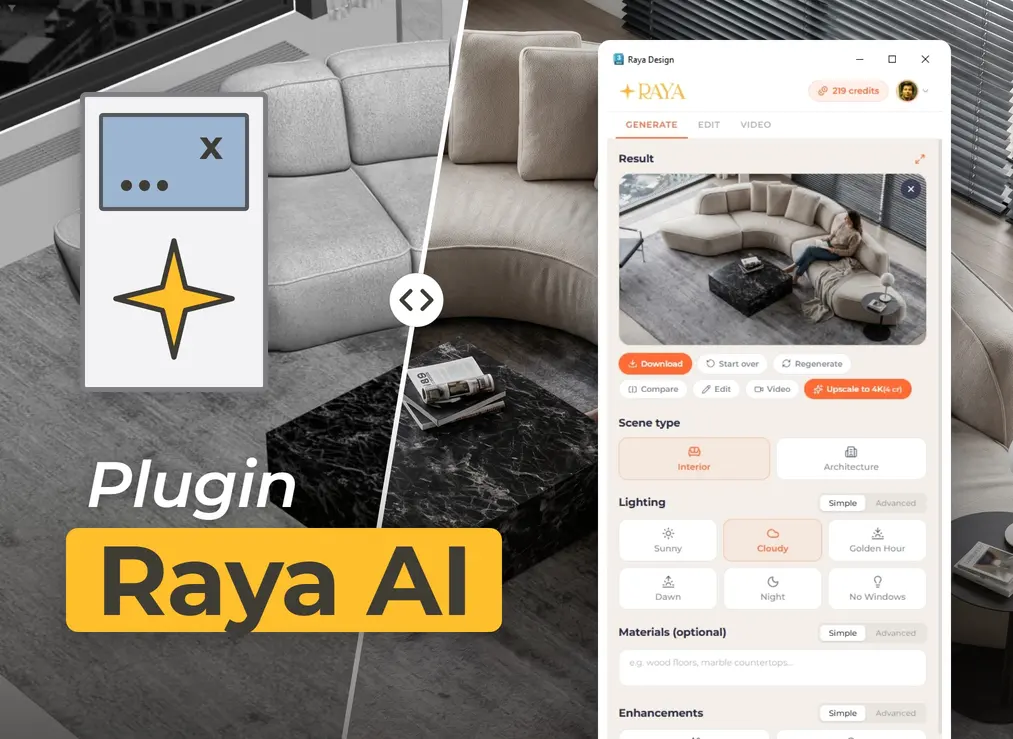
AI render straight from the 3ds Max viewport
Classic visualization in 3ds Max takes a lot of time before the first image appears. You assign shaders in V-Ray or Corona, set up lights and the camera, make a few test renders, and the final calculation of the full scene takes from several minutes to several hours, during which the computer is tied up. When the client wants to see the same room at night or with a different floor, the whole cycle starts all over again.
Raya is a free AI plugin for 3ds Max that turns the viewport view into a photorealistic visualization in under a minute. In the panel you capture the current view, choose the scene type and lighting, and the rest is filled in by artificial intelligence: materials, lighting, reflections, and details. The image is generated in the cloud, so the workstation remains free and you can continue working on the scene.
What does an AI render in 3ds Max look like step by step?
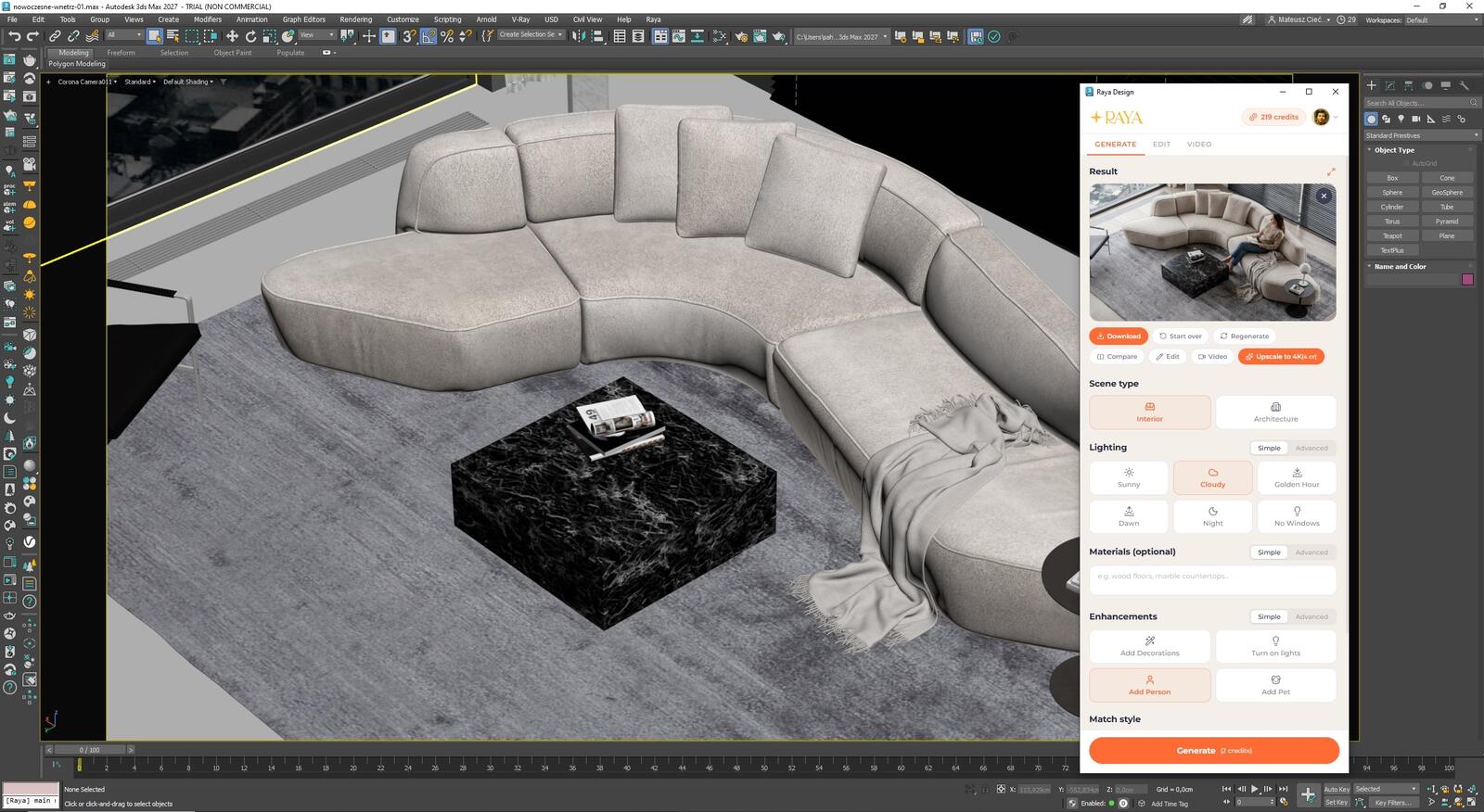
You open the Raya panel from the 3ds Max menu and work in it next to the viewport:
- You set the frame. You position the camera in the viewport just as you would before a standard render.
- You capture the view. With one click you transfer the image from the viewport to the panel.
- You set the parameters. In the panel you choose the scene type, lighting, season, materials, and image resolution.
- You generate. The result returns to the panel in under a minute, ready for download or further editing.
At what stage of the project is Raya useful?
Rough massing concept
A scene with basic materials is all you need. You can show the project direction to the investor before spending a day on a setup that might not be approved, and then refine only what the client has signed off on.
Variants for the client
You can create the same frame in sunlight, under a cloudy sky, during the golden hour, at dawn, and at night in just a few minutes. The model stays exactly as it was, and each variant is saved as a separate image in the account history, so you don't end up with multiple .max files with different lighting settings.
Final visualization
You generate the final image in 2K or 4K, and you can upscale it to 6K for print or presentation boards. Many studios deliver such visualizations to clients as final output.
Daylight, twilight, and winter with one click
In the simple lighting mode, you have six settings: sunny, cloudy, golden hour, dawn, night, and interior without windows. The season setting changes the scenery around and outside the building, from green trees in summer to snow in winter. One viewport view gives a whole series of shots for your presentation, while the sun and HDRI in the scene remain untouched.
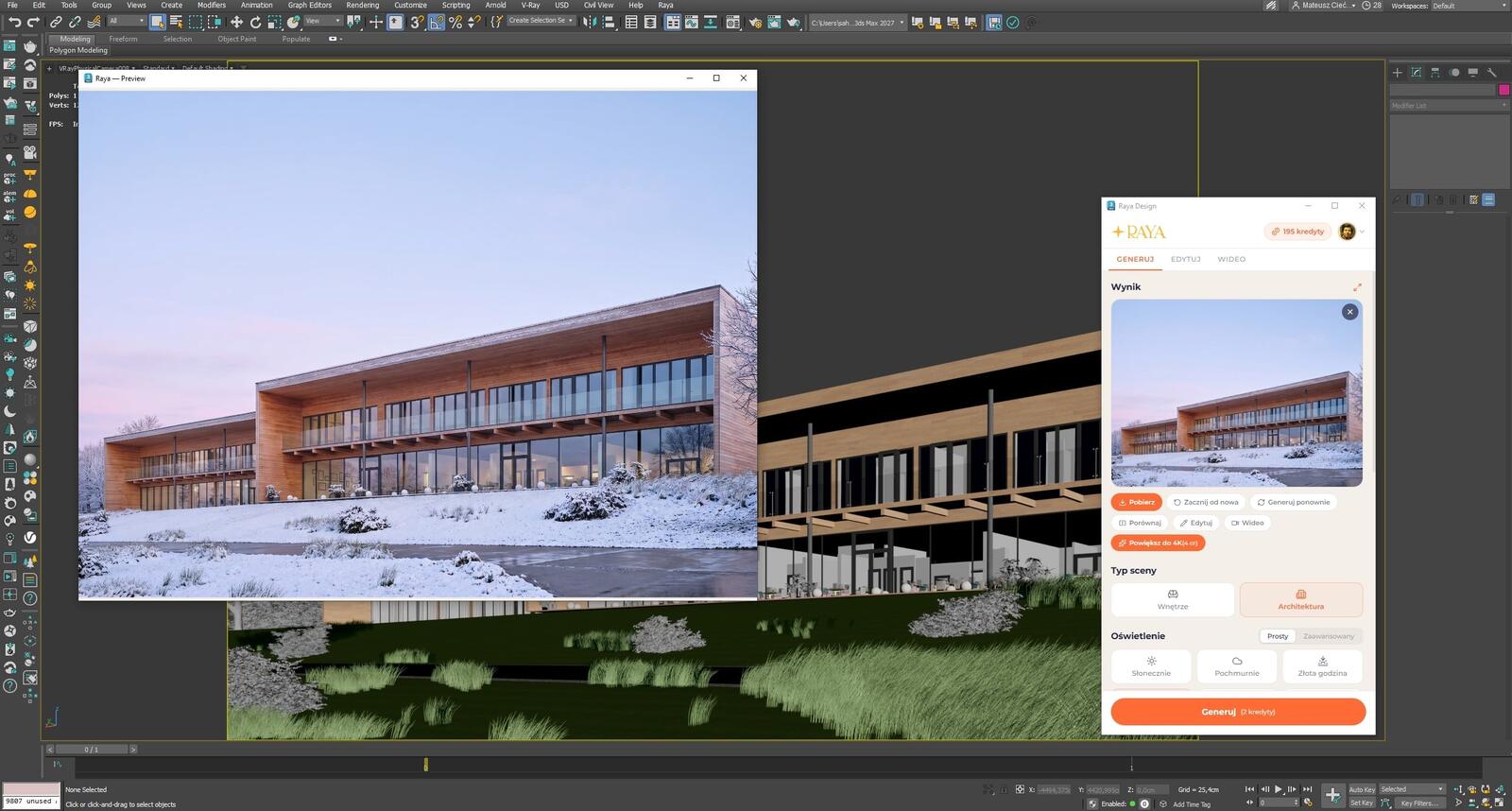
In advanced mode, you describe the lighting in your own words, for example "warm light from the left and long shadows". The Match Style option transfers the lighting, materials, and atmosphere from a reference photo into the scene, ensuring that multiple shots of the same project look consistent.
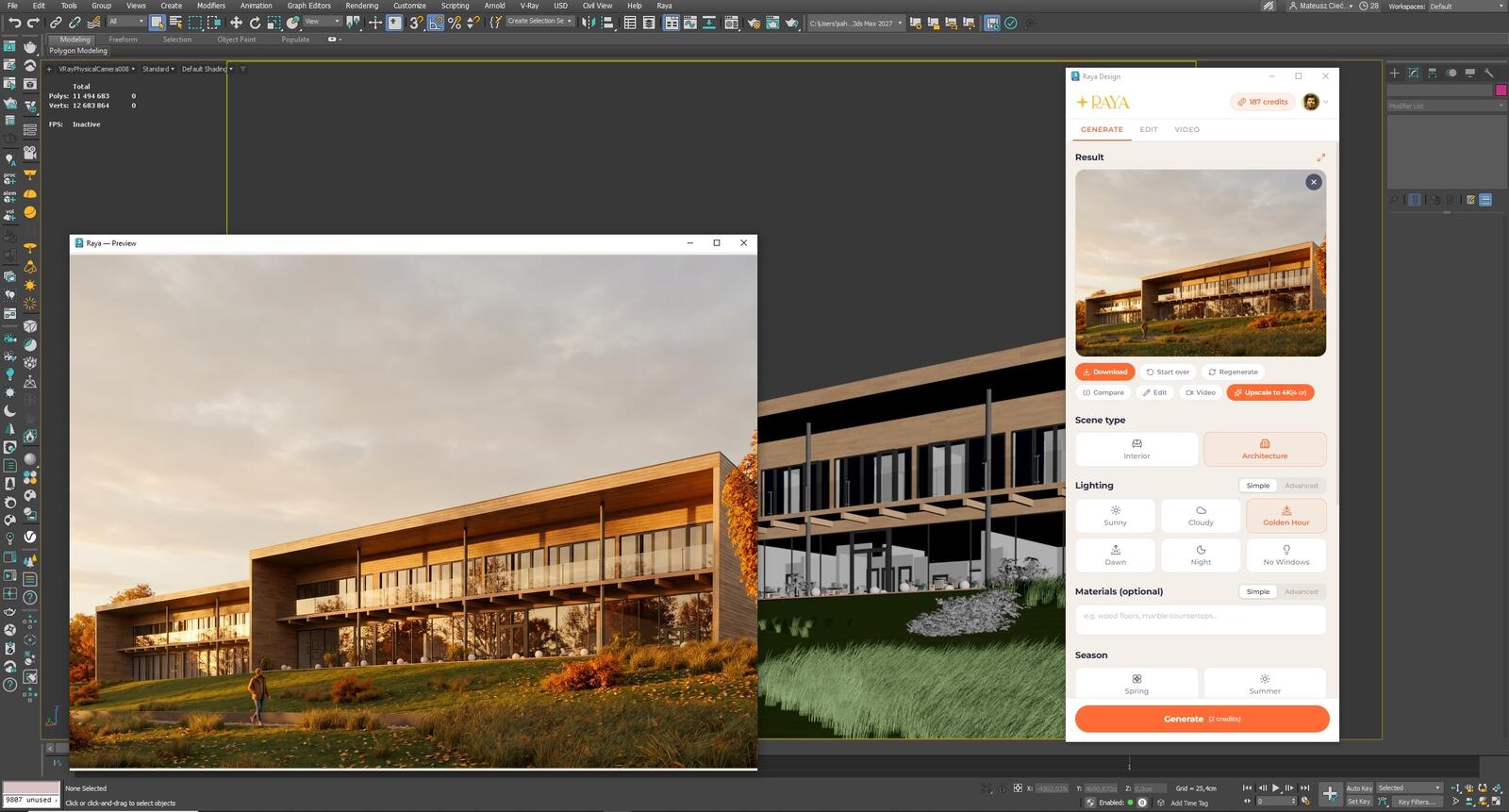
Control over furnishings and details
The AI selects materials and furnishings on its own, but you can specify any element you care about:
- Materials. You assign them in words to scene elements, for example a larch facade or a concrete floor.
- Products from the catalog. You upload a specific lamp, chair, or fabric as an image and indicate where it should appear in the frame.
- Outline a section. You draw around a part of the visualization with the cursor and describe how it should look after the change.
- Decor and lights. One option adds small items on shelves and plants, the other turns on lights in the interior.
- People and animals. A person reading on a sofa or a dog on a carpet will show the scale of the interior and bring the shot to life.
Corrections on the final image
You apply client feedback in the Edit tab on the generated image, while the 3ds Max scene remains untouched. A simple description of the correction, an outline of the area in question, or a photo of the object to add is all that's needed. You can also view the same frame from a different angle: from above, below, from the side, in a close-up on a detail, or in a wider shot. The Compare button shows the viewport and the result side by side.
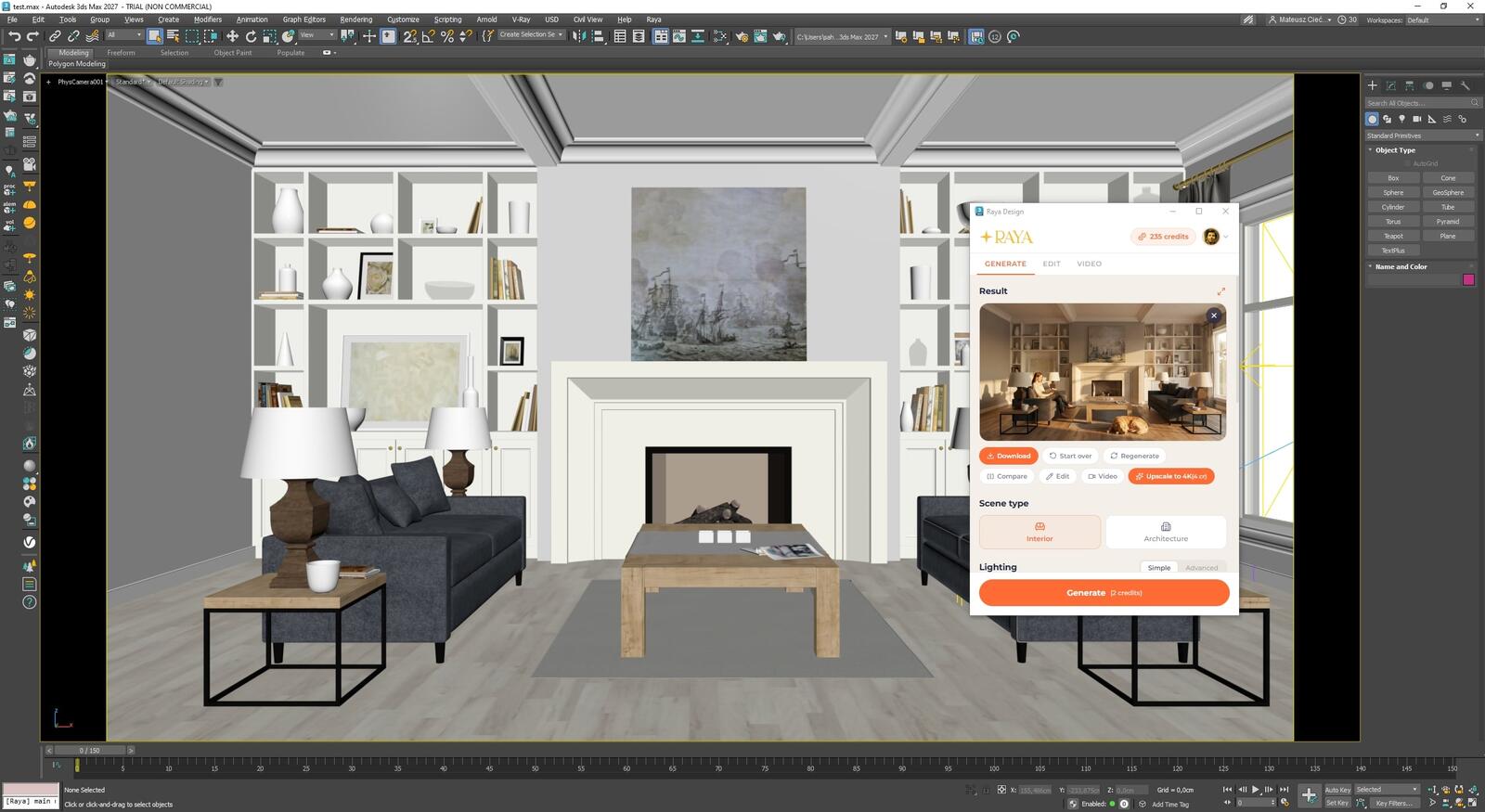
Video from the visualization instead of sequence rendering
Animation in 3ds Max is a camera path and often a whole night of frame calculation. In the Video tab, you can create a short film from the finished visualization. You describe the motion in words or choose a preset shot, for example furniture sliding into an empty room or the change of light from morning to evening. You can also add an end frame for a smooth transition. Such material is useful for social media and presentations when a full animation doesn't fit the schedule.
What's free in Raya and what costs credits?
Installing the 3ds Max plugin and creating a Raya account is free. You only pay for generated images with credits. At the start, the account receives 20 credits to use within 14 days, which is enough for 10 2K visualizations and a thorough test on your own scene. You can use images from the free pool commercially, just like those from a paid plan. You can find pricing for packages and subscriptions in the Raya pricing.
| Item | Price |
|---|---|
| 3ds Max plugin | free |
| Raya account | no fees |
| Starter pack (14 days) | 20 credits |
| 2K / 4K image | 2 / 4 credits |
| 2K / 4K edit | 2 / 4 credits |
| Upscale to 4K / 6K | 4 / 5 credits |
| Short video | from 5 credits |
| 3D model from photo (web app) | from 6 credits |
A generation interrupted by a technical error costs you nothing, as the credits are automatically returned to your account.
Raya, V-Ray, and Corona: how to combine them?
Raya generates an image based on the viewport view, so it offers less control over individual details than an in-scene engine, and two generations of the same frame will differ in the details. That's why the tools complement each other well. In Raya you quickly check the framing, mood, and material variants, while you reserve V-Ray or Corona for shots that need to match the scene pixel for pixel and be repeatable. Many studios also use Raya for final visualizations.
The plugin uses only the image captured from the viewport, so the scene and project files remain unchanged.
One account in 3ds Max, the browser, and other applications
- Interface in Polish, as well as English, Spanish, Italian, and German.
- 3ds Max 2021–2027 on Windows 10 and 11.
- Shared credit pool for the web app and plugins for SketchUp, Revit, ArchiCAD, Rhino, and pCon.planner.
- 3D models from photos. In the web app you can create a 3D model of a piece of furniture from a photo and download it in FBX format, which 3ds Max imports without conversion.
- Cloud history. Every generated shot can later be found in your account in the browser, even on another computer.
Several frame variants before a test render finishes
Raya was created so that an image for client review is ready when it's needed. During the time it takes the engine to compute one test render, you have several frame versions to compare, and you only do a full scene setup for the one the client chooses. Download the plugin and test it on the scene you're working on now using the registration credits.
It's also good to have a classic workflow at hand. If you want to refine scenes in a render engine, check out the 3ds Max, V-Ray and Corona Renderer courses.
Share your results
Share your 3ds Max and Raya visualizations on Instagram or Facebook with the tag @cgwisdom.pl. We'll feature the best works on our profiles.