EN
 PL
 ES



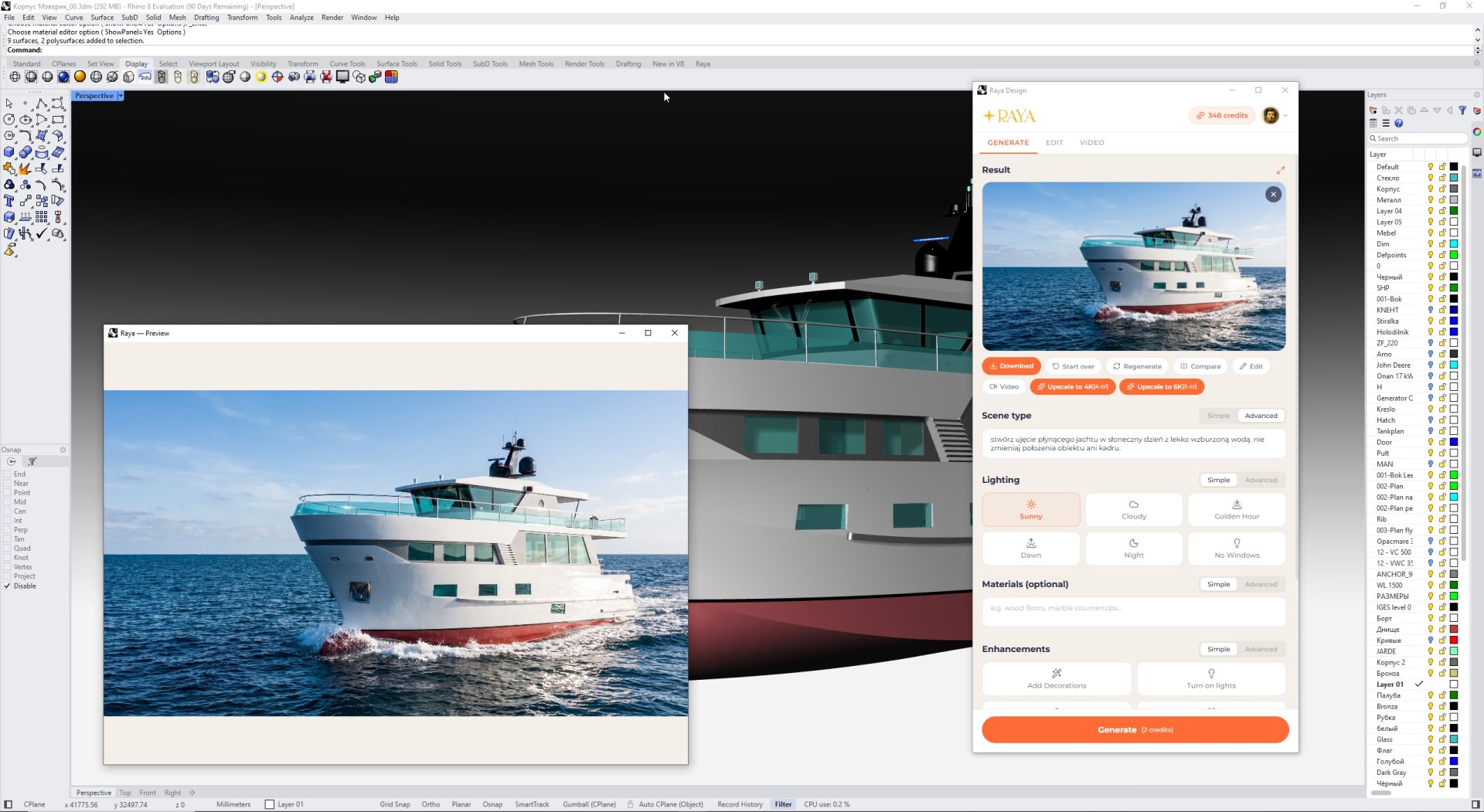
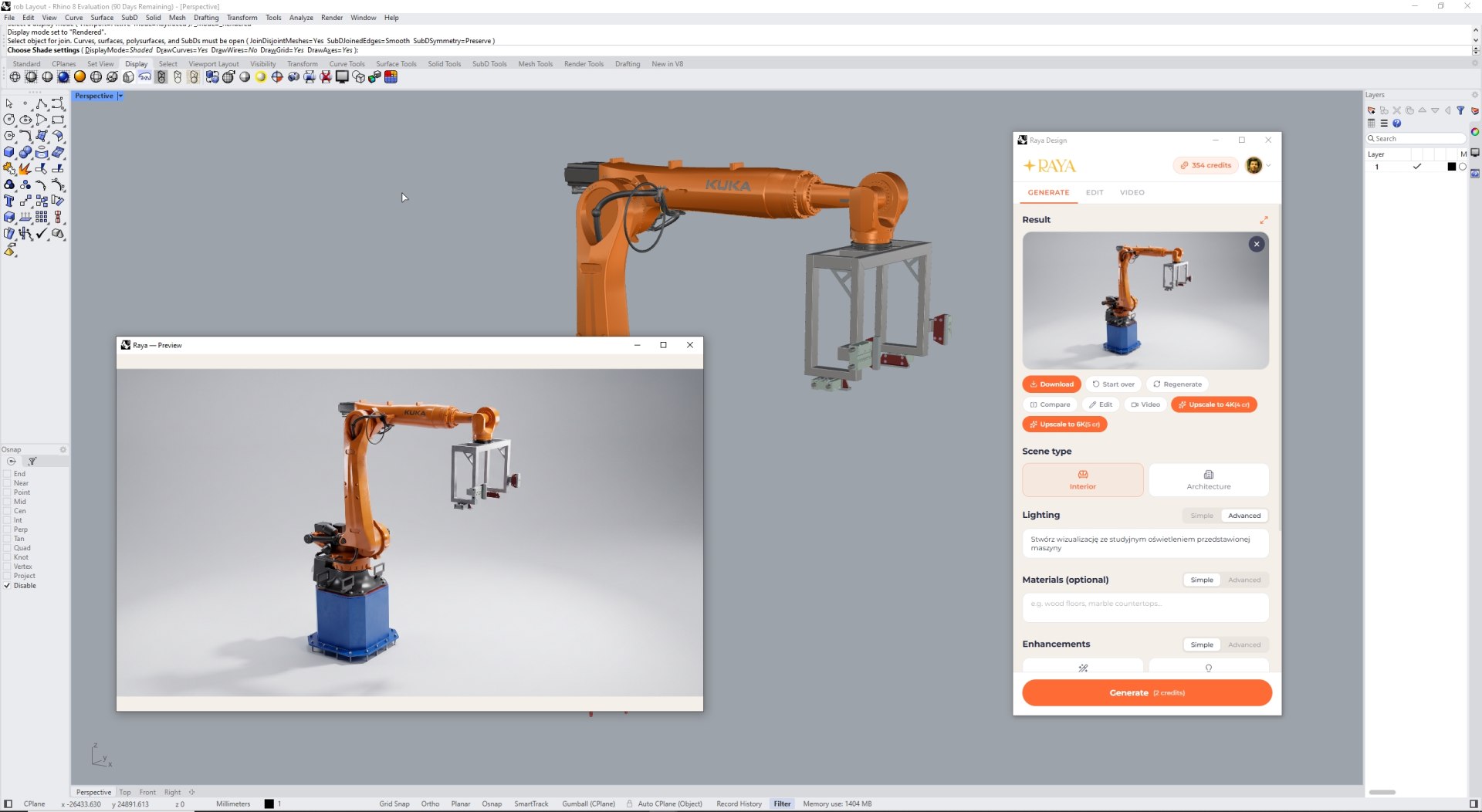
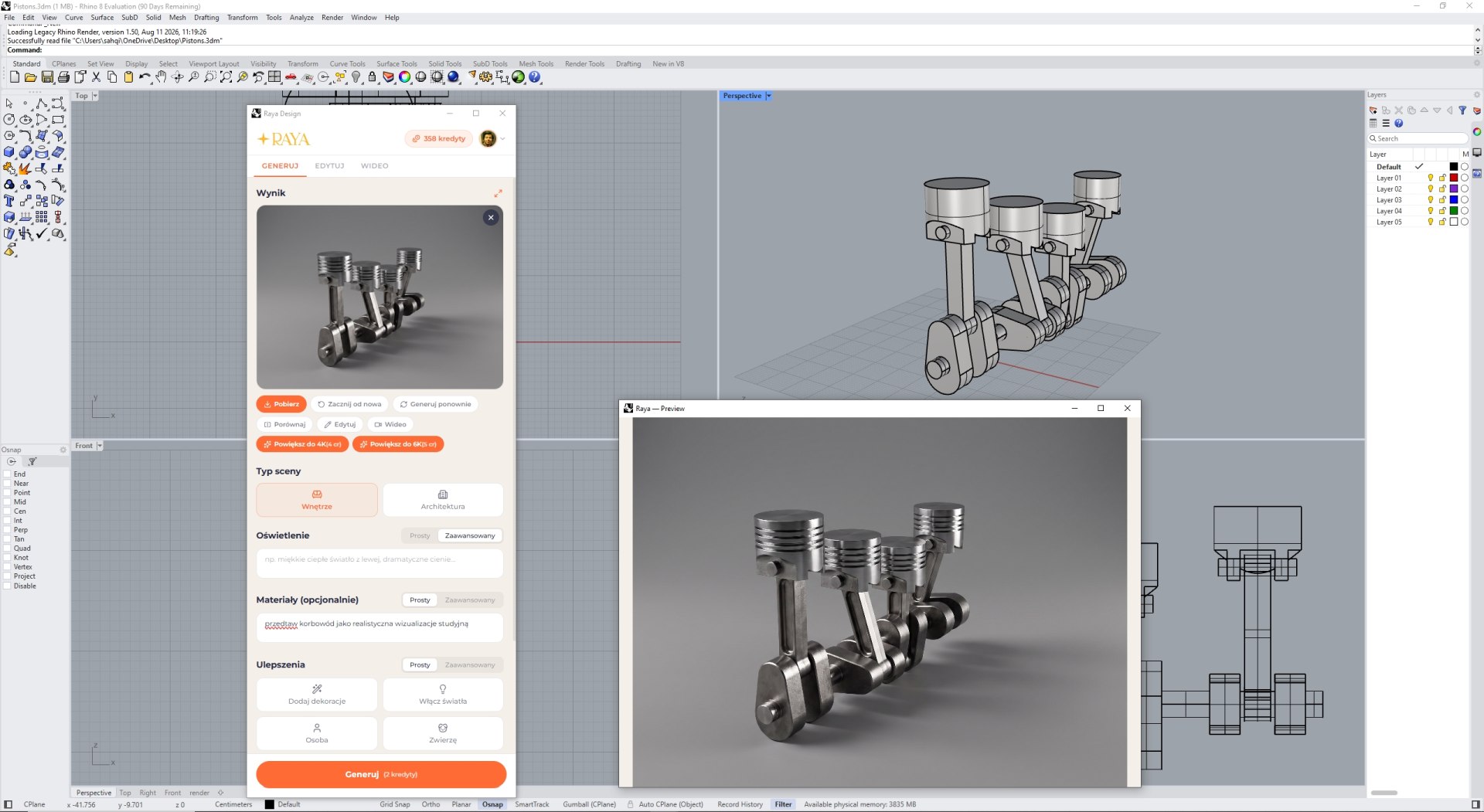
Product rendering straight from the Rhino viewport
The NURBS model is ready, the surfaces have been checked, but an image is still missing for the presentation.This usually means KeyShot, V-Ray or Enscape: choosing materials, studio lighting or an HDRI map, and when the product needs to stand in a real environment, also modelling a road, waterfront or hall interior.Only then is it time to render the image.
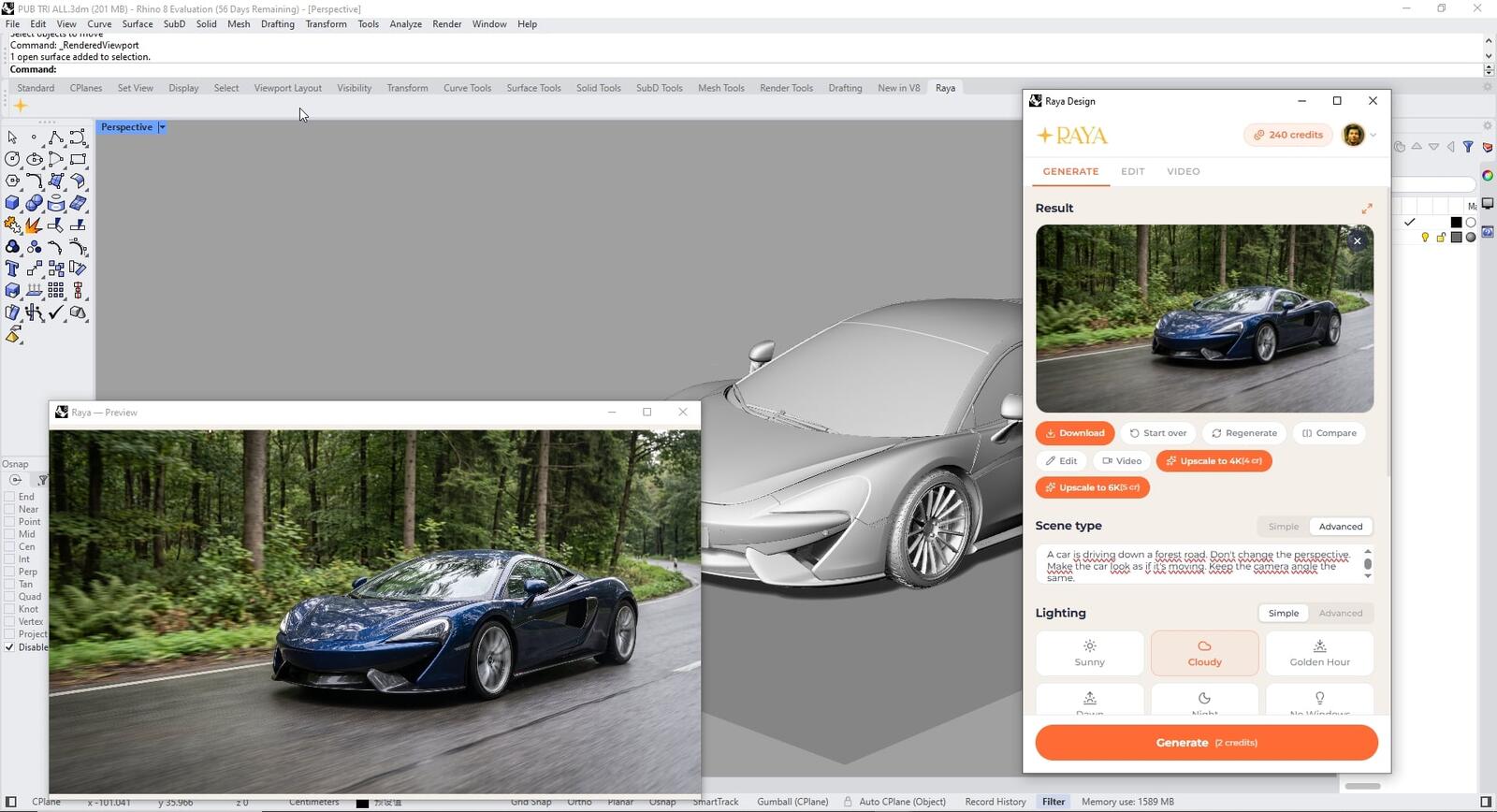
Raya is a free AI plugin for Rhino that turns the active viewport into a photorealistic visualization in less than a minute. You describe the environment in words, and artificial intelligence builds it around your model: sea around a yacht hull, wet asphalt beneath a car, or a shadowless studio under a machine.The geometry in Rhino remains untouched because the plugin reads only the image from the viewport.
Installation and your first render in Rhino
The Rhino plugin has no traditional installer, and one package supports Rhino 6, 7 and 8.The entire process takes a few minutes:
- Extract the downloaded ZIP file and choose the folder matching your version: Rhino 6, Rhino 7 or Rhino 8.Keep it in a permanent location on your drive, because Rhino loads the plugin directly from there.
- Drag the Raya.Rhino.rhp file onto the Rhino window and confirm loading the plugin.
- Type Raya in the command line and press Enter.The panel will open immediately, without restarting the software.
- Sign in, set up the viewport with your product, capture it and click “Generate”.
After the first load, a small “Raya” toolbar with a gold star will also appear, and you can change the panel language with the RayaLanguage command.
An environment from a description instead of a model
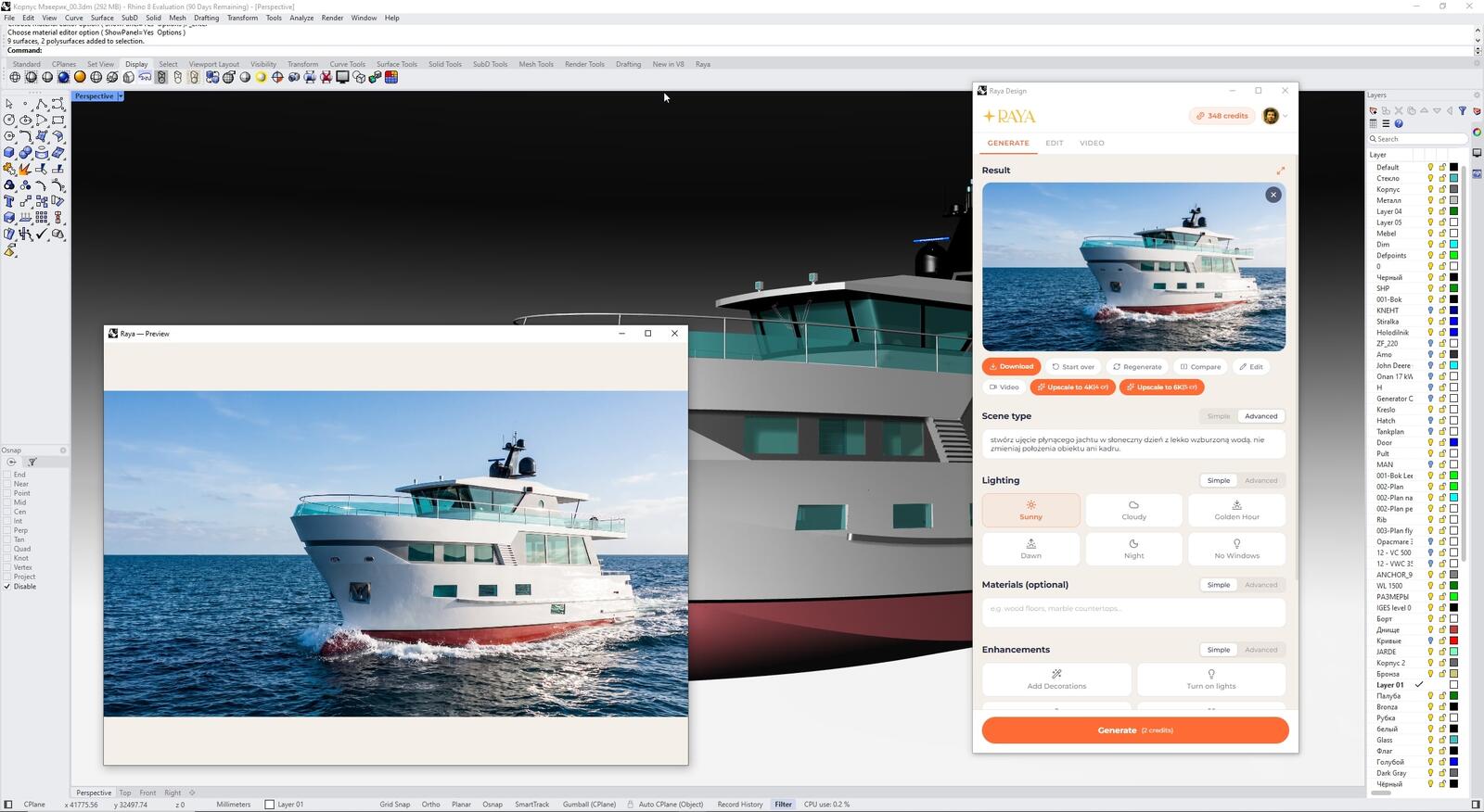
For products, advanced mode works best, allowing you to describe the scene in your own words.The yacht in the example above was created with an instruction to show it sailing on slightly rough water on a sunny day.It is worth adding that the AI should not change the object's position or the framing.The product then usually remains in the same place as in the viewport, while the world around it changes.
Studio, packshot and technical detail
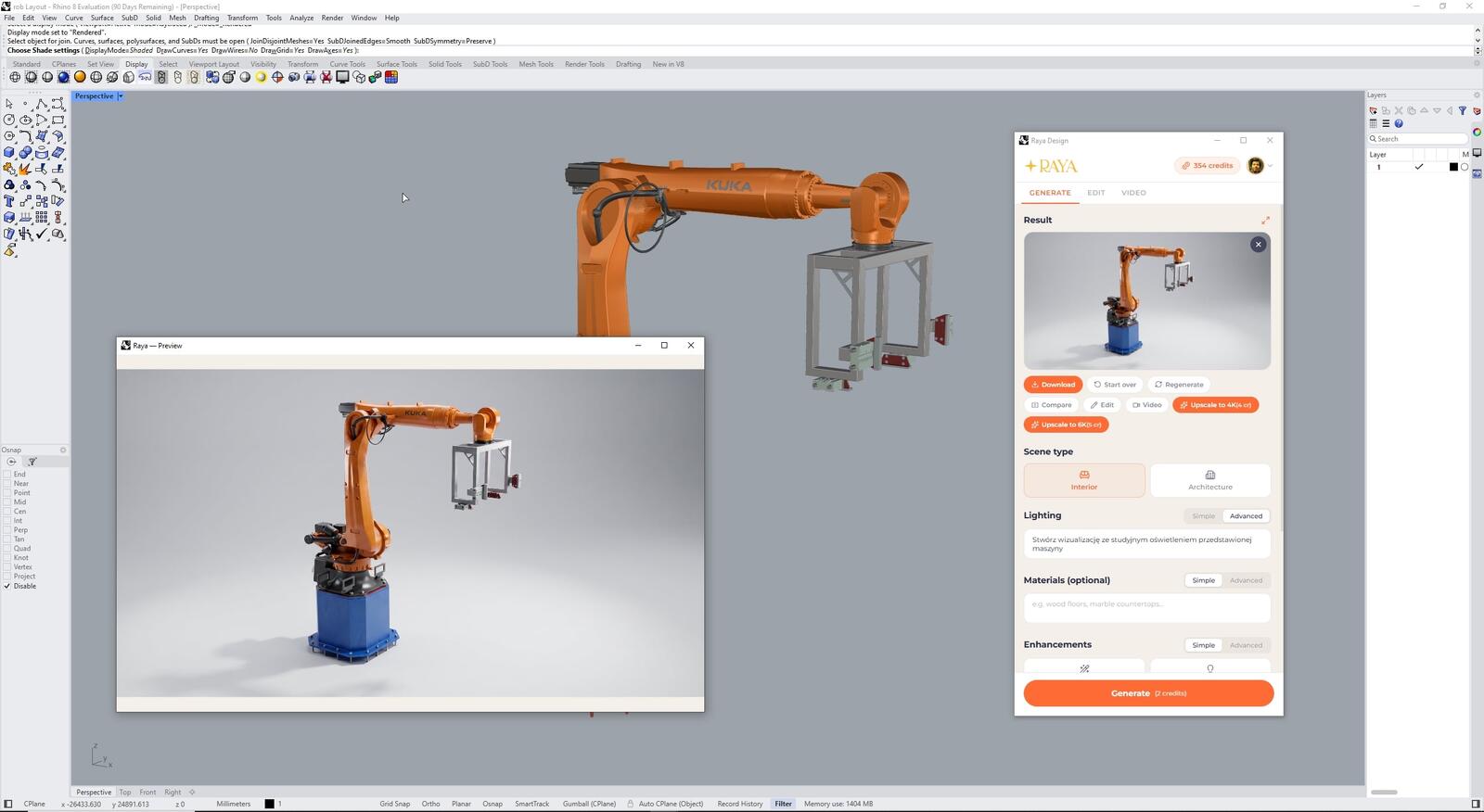
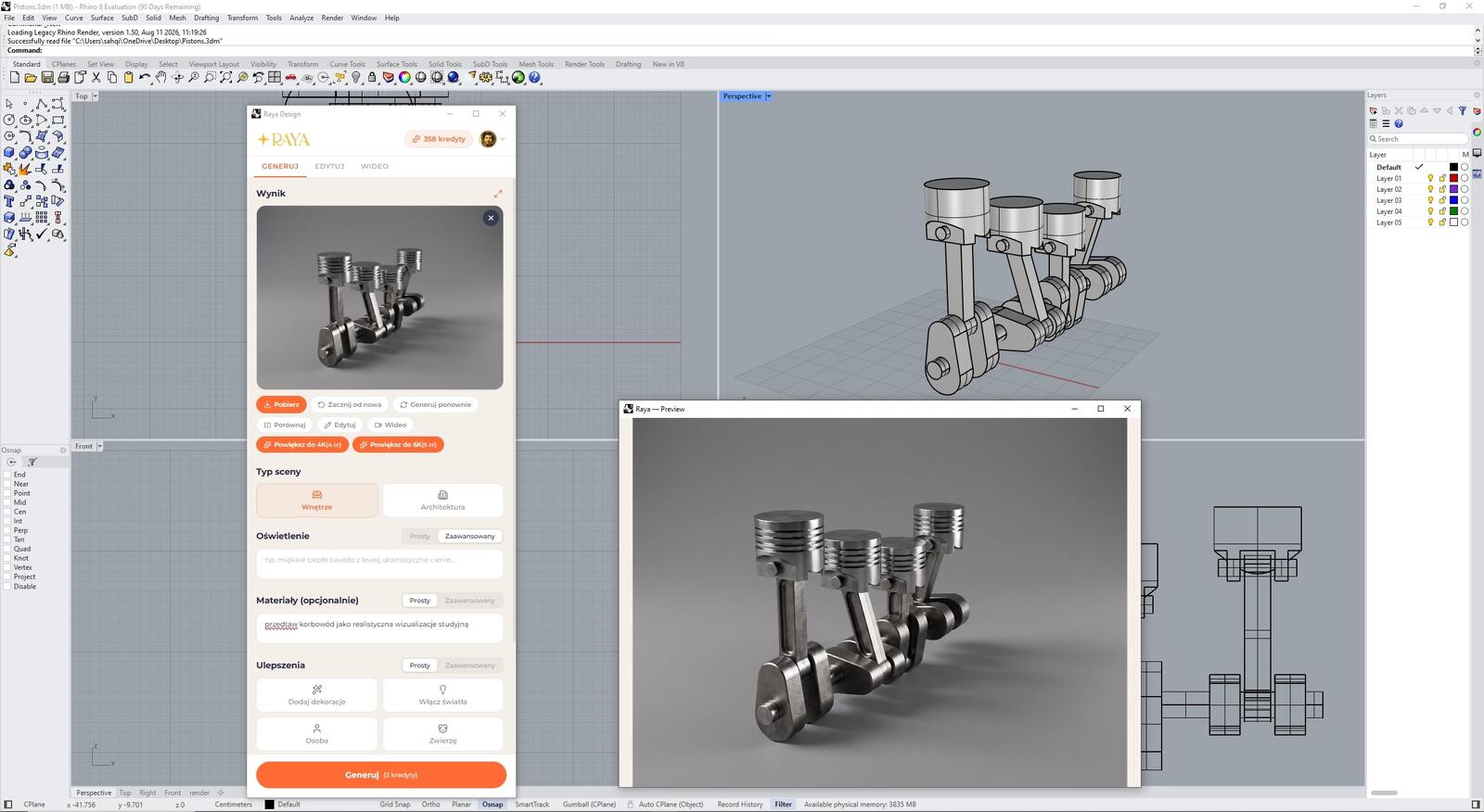
Not every product needs an outdoor setting.An industrial robot arm or a piston assembly with a crankshaft can be shown in a neutral studio, with soft lighting and a subtle shadow beneath the object.This type of shot is suitable for a catalogue, technical offer or product page, and you can prepare it without setting up lights and a background.
Colours and finishes in several versions
You can run the same shot through Raya several times using different material descriptions, for example navy metallic paint, matte silver or glossy red.You get a series of variants to compare, while the Rhino model does not require repainting layers.You can later change an individual element in the Edit tab by selecting it in the image, and reposition the camera to a top, bottom or side view, or a close-up detail shot.
A short video from a finished shot
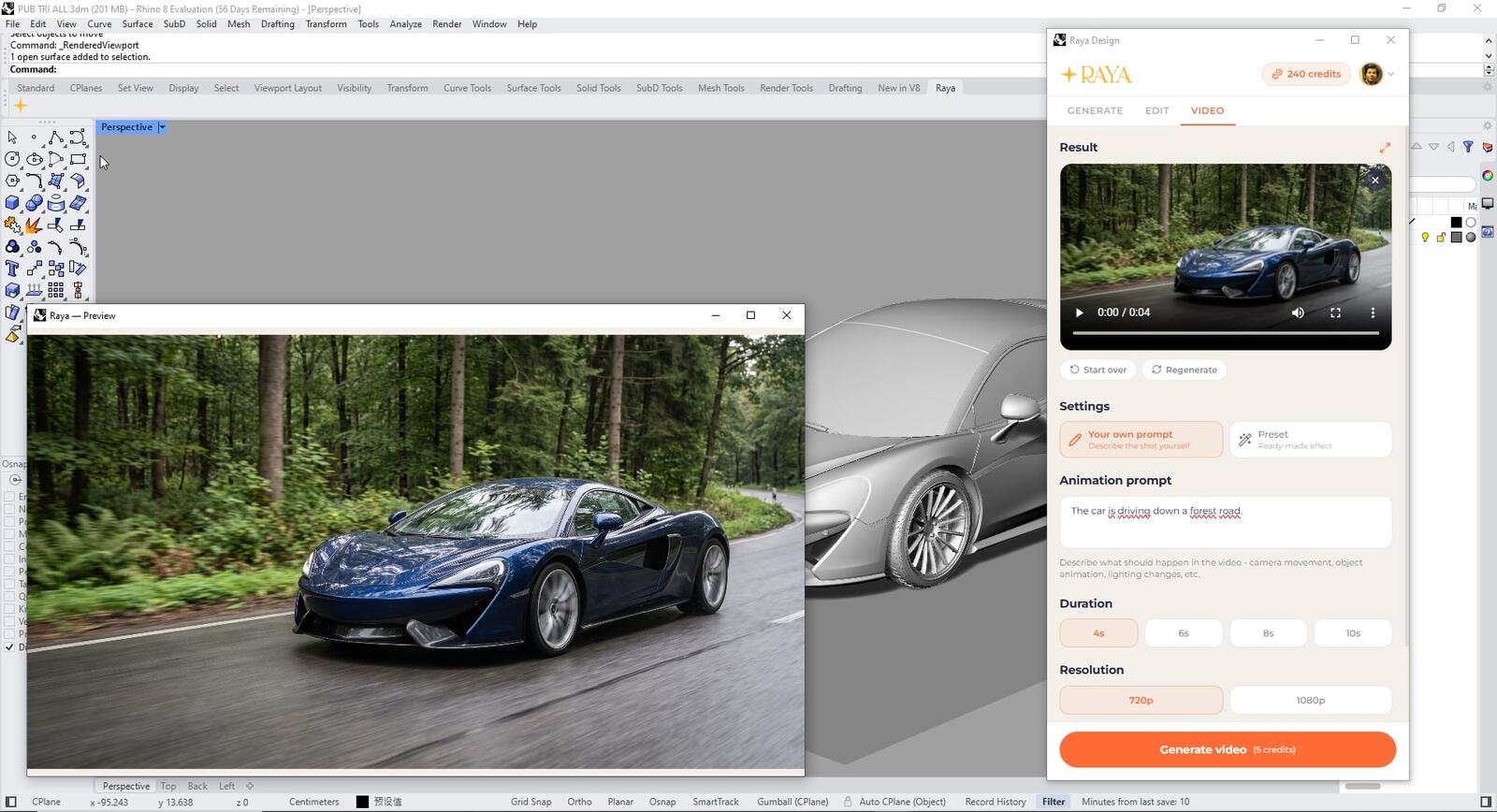
A static render shows the form well, but motion sells the product better.In the Video tab, you can turn a visualization into a several-second clip in which a car drives along a forest road and a yacht cuts through waves.You describe the camera and object motion yourself, and can watch the finished clip immediately in the panel and download it to your drive.
Pricing at a glance
You get the plugin and account free of charge, and pay with credits for each generated image or video.To start, your account receives 20 credits to use within 14 days, which equals ten 2K product shots.You can use images from this allocation commercially, for example in an offer for a client or on a store website.
| Task | Price in credits |
|---|---|
| Raya plugin and account | free of charge |
| Starter credits | 20, for 14 days |
| 2K / 4K product shot | 2 / 4 |
| 2K / 4K shot editing | 2 / 4 |
| Higher resolution (4K / 6K) | 4 / 5 |
| Video from a shot | from 5 |
You can buy additional credits as a package or through a subscription; details can be found in the Raya pricing.You do not pay for generation interrupted by a technical error; credits are returned automatically.
When should you use KeyShot or V-Ray, and when Raya?
A traditional renderer reproduces a material with a specific specification, for example a CMF sample agreed with the manufacturer, and repeats the shot pixel-perfectly with every model change.Raya generates an image based on the view, so it works better when time matters: for concepts, client presentations, campaigns or social media posts.Many designers also create final images with it, while using KeyShot for production documentation.
Rhino 6, 7 and 8, one account for everything
- Rhino 6, 7 and 8 on 64-bit Windows 10 or 11 with Microsoft Edge WebView2 Runtime installed.
- Rhino on Mac is not supported yet.You can then upload a viewport screenshot to the Raya web application.
- One account also supports the browser application and plugins for SketchUp, Revit, ArchiCAD, 3ds Max and pCon.planner.
- Panel in five languages, switched with the RayaLanguage command.
From model to product presentation in minutes
Raya is useful wherever the form is ready before the image.The designer can check how a product looks in its target environment before investing time in a complete rendering scene.Download the plugin, drag the file from your version folder onto the Rhino window and generate your first shot using starter credits.
Want to learn more about NURBS modelling?Check out Rhinoceros 3D courses.
Show your product
A yacht, car, piece of furniture or machine made with Rhino and Raya?Publish your visualization on Instagram or Facebook with the tag @cgwisdom.pl, and we will showcase the most interesting projects more widely.