EN
EN PL
PL ES
ES


Publication date: 11-02-2026 | Update date: 11-02-2026 | Author: Piotr Kurpiewski

-
Online courses
- All
 3ds Max
 AI - Artificial Intelligence
 Blender
 Corona renderer
 GstarCAD
 LayOut
 Photoshop
 Interior Design
 Revit
Revit Sketchup
 Stable Diffusion
 V-ray
V-ray
"Online courses" are comprehensive online training programs that will help you quickly master the software you are interested in.
- Plugins
- 3D Models
- Help
- Articles
SketchUp - how to change inches to centimeters? Guide, tutorial
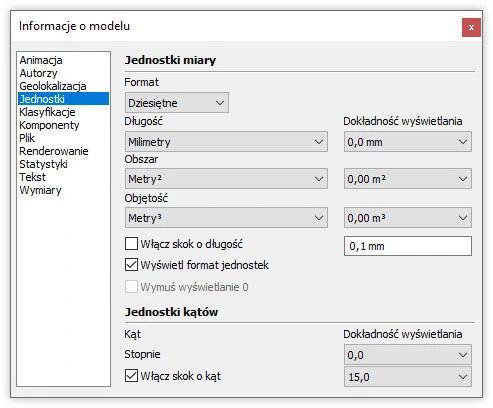
Selecting units in SketchUp happens when choosing the template in the startup window. The unit format, such as inches, meters, or millimeters, is clearly marked there. During work, you can change the units. To do this, go to the Window tab in the top toolbar and in Model Info choose the appropriate Units. By default, units are set to the architectural format (inches and feet), characteristic of the American market. When you want to change inches to centimeters, first switch the unit format to decimal. Then define which units will be used for length, area, and volume.
Every file in .skp format has its units defined according to the standard. By default, it uses the so-called architectural standard—that is, inches (for length) and feet (for area), characteristic of the American market. In Central Europe, however, the decimal standard expressed in centimeters applies.
How to Change Units in SketchUp?
Every time the program starts, the user must choose a template from the start window. At this stage, they decide on the units they will work in. Each template clearly specifies the format: inches, meters, or millimeters.
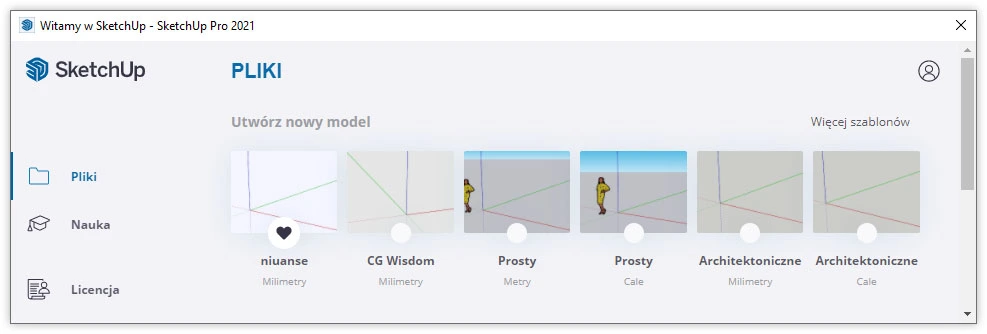
You can change units at any stage of your work. Just select the appropriate value in the Model Info menu. You’ll find it in the top bar under the Window tab. After selecting Model Info, choose Units from the side panel, and then specify the desired format.
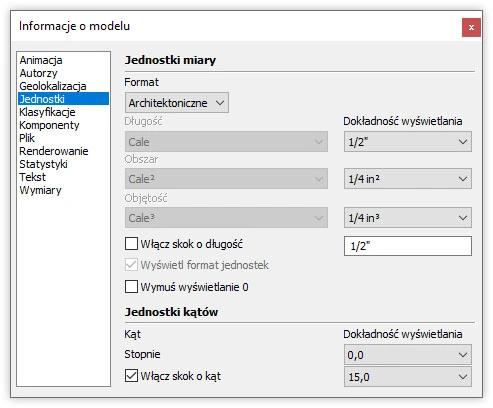
The default units are set in the architectural format, that is, the aforementioned American standard. To change inches to centimeters, you first need to switch the unit format to decimal. Then you can choose which units will be used for length, area, and volume.
Which Units Should You Choose?
Units should be chosen according to the scope of the project. For urban planning or large architectural projects, meters are appropriate. Smaller projects, such as single-family houses, are more conveniently drawn in centimeters. Interiors, on the other hand, are best done in millimeters—preferably with accuracy to one decimal place. Area is always expressed in square meters (m2), and volume in cubic meters (m3).
Adapt the units to your needs. Set them so that it’s comfortable to work and define the display precision. Besides the basic settings, you can also enable step increments (e.g., to one decimal place or only whole numbers), which will help you avoid uneven segments.
How to Create Your Own Template?
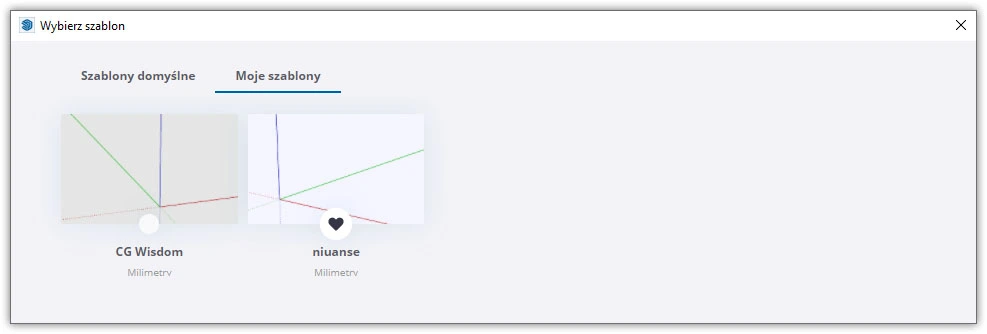
If you don’t want to choose the units indicated by SketchUp every time, you can prepare your own template and set it as default. Simply apply all the changes regarding units, styles, shadows, or file content, and then save it by selecting Save as Template in the File tab of the top menu.
The template with the specified name will appear among the others available in the SketchUp start menu, in the My Templates panel. By giving it the heart icon, you make it the default template.
Summary
I hope that after reading this article you will easily adapt the units to your needs. By creating your own template, you can easily personalize your workspace. And if you want to learn more about the basics of SketchUp, be sure to check out our course: SketchUp 2021 Pro from the Basics.
Author

Przeczytaj o programie Sketchup na naszym blogu
-
![Profile Builder 4 or Magic Molding? Comparison of Ornamentation Plugins in SketchUp]()
Profile Builder 4 or Magic Molding? Comparison of Ornamentation Plugins in SketchUp
How does Profile Builder 4 differ from Magic Molding? Scope, pricing, profile libraries, and learning curve. Find out which plugin fits your projects. -
![The Best Free SketchUp Plugins for Interior Designers in 2026!]()
The Best Free SketchUp Plugins for Interior Designers in 2026!
Which SketchUp plugins are really worth having? Discover 7 free extensions for interior designers and find out which ones have just stopped being free! -
![English wainscoting in SketchUp - how to design wall panels step by step]()
English wainscoting in SketchUp - how to design wall panels step by step
How to design English wainscoting in SketchUp? Learn the rules for panel division, wainscot proportions, and speed up your work with the Magic Molding plugin. -
![Reversed Faces in SketchUp – why are blue faces showing and how to fix them?]()
Reversed Faces in SketchUp – why are blue faces showing and how to fix them?
Blue faces in SketchUp are flipped faces. Learn where they come from, how to quickly locate and fix them before they mess up your render or model export.


Want to learn Sketchup? Check out our free online course!