EN
EN PL
PL ES
ES


Publication date: 16-02-2026 | Update date: 16-02-2026 | Author: Piotr Kurpiewski

-
Online courses
- All
 3ds Max
 AI - Artificial Intelligence
 Blender
 Corona renderer
 GstarCAD
 LayOut
 Photoshop
 Interior Design
 Revit
Revit Sketchup
 Stable Diffusion
 V-ray
V-ray
"Online courses" are comprehensive online training programs that will help you quickly master the software you are interested in.
- Plugins
- 3D Models
- Help
- Articles
SketchUp - how to add a component? Guide, tutorial
To add a component to your model in SketchUp, select the geometry you want to convert into a component. Right-click on it and choose the "Create Component" option, give it a name and other properties. Click "Create", and the component will be automatically placed where the selected geometry was located.
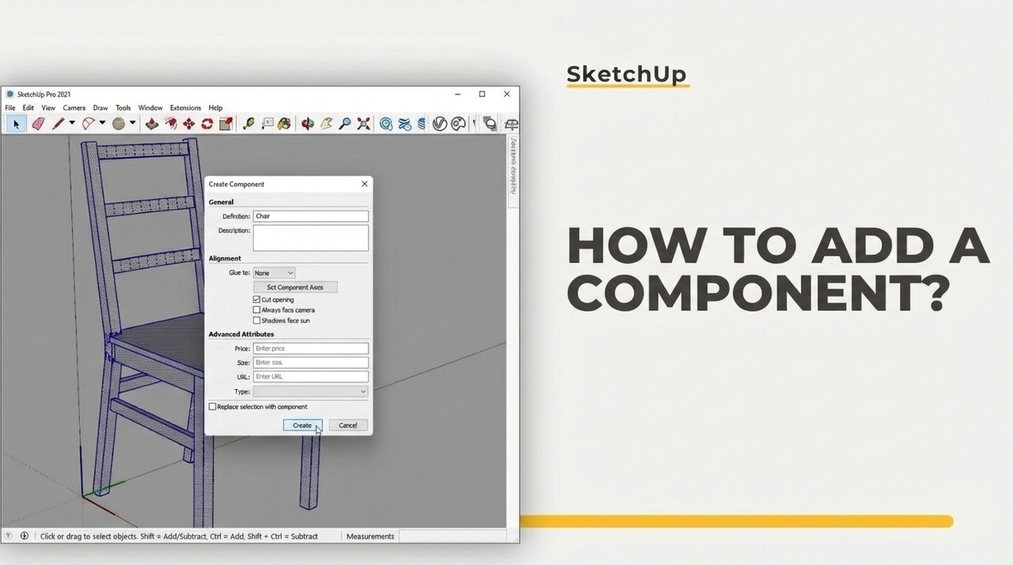
Components are special geometric objects with identical characteristics. If your SketchUp file contains several models that are identical to each other, they should definitely be components.
SketchUp - Groups
Groups are simply a way to organize complex scenes. In the 3D graphics environment, this is called hierarchization. Each program has a slightly different approach to this topic, using, among other things, layers, collections, or instances. In SketchUp, the solution is groups.
Models are grouped to separate geometries from each other or to isolate smaller elements from larger compositions. Take a look at the example below. I created a simple chair, which I then turned into a group by selecting all faces and choosing "Make Group" from the context menu.
This way I created a certain context. To make changes to this geometry, I first have to enter the group context by choosing "Edit Group" from the context menu. Only in this way can I modify individual edges. Outside this context, the chair behaves as if it were a single, indivisible object.
Creating groups is a great way to bring order to a scene. There can be multiple contexts, and groups can be nested inside each other like Russian matryoshkas. Take a look at the practical example below. The first context is the entire chair. In the second, there are subdivisions for the front legs, backrest, cross braces, and seat. Within the seat context, there are additional support groups along with the group of the actual seat.
Such nesting of elements guarantees excellent control over the file and reduces the risk of errors occurring.
SketchUp - Components, or Groups for Special Tasks
Components are derived from groups. They differ from them in that when you make changes to one component, you change all of them at once. Let's assume that the chairs below are components. After entering the context of one of them (by selecting "Edit Component" from the context menu), I will change the seat height. Notice that the changes are automatically applied in the second instance as well.
This is the characteristic feature of components. These objects behave like their copies.
How to Add a Component?
In general, in SketchUp, you should avoid so-called loose geometry, meaning geometry that is not nested in any group or component. Everything in your scene should be hierarchically organized to some extent. But how do you create a component?
Just select any geometry, then choose "Make Component" from the context menu. This will open an additional dialog where you can assign a name to the component and choose its specific properties.
If you create a component from loose geometry, you can additionally define its axes, i.e., the X, Y, and Z directions. This won’t be necessary if you convert a group into a component, since the group already has its axes defined. This is quite important when editing an object (e.g., scaling) and replacing one component with another. It’s essential to set the axes at the base of the model and to align the directions with the grid orientation.
How to Remove a Component?
Components can be copied, modified; you can even embed a component within another component, just like with groups. The analogy to matryoshkas applies here again. Take a look at the example below. The chair is a component, and inside its context are two identical legs that have also been made into components. They can be easily modified because changes are applied to all instances of the component simultaneously.
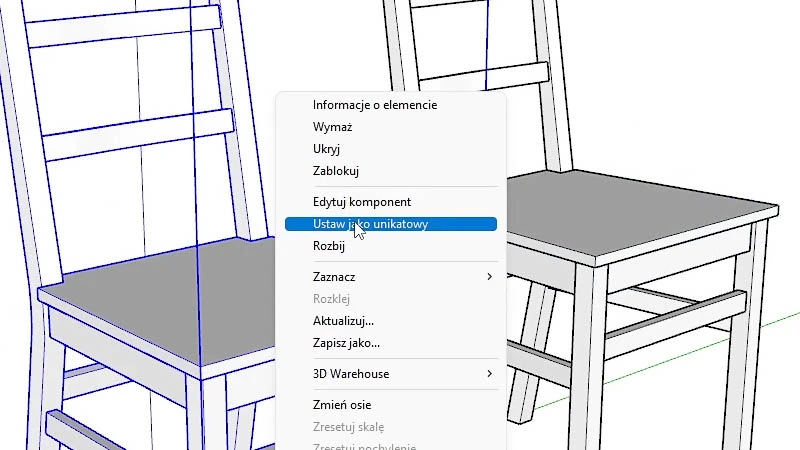
What if one of the chairs needs to be different? What if I want the seats to have different colors? In that case, you don’t so much remove the component as make it function independently from the others. It’s not complicated. Just select the component and choose "Make Unique" from the context menu. This way, I can successfully change the seat color while keeping the same leg components.
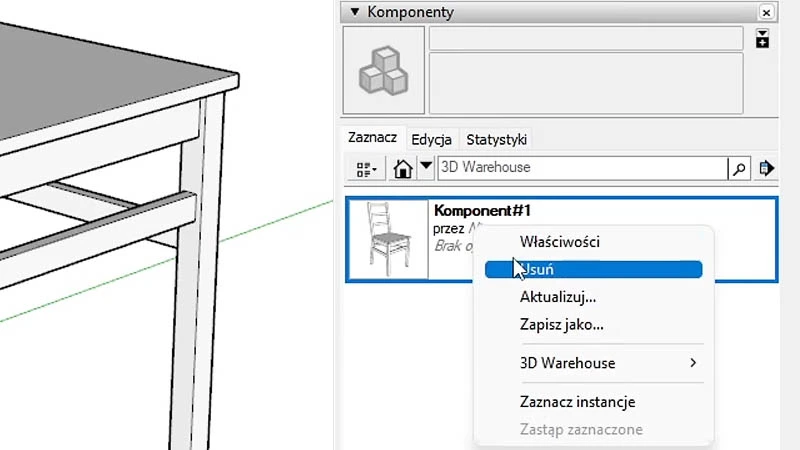
It may also happen that a component is no longer needed in the scene. In that case, you delete it like any other object in the file, e.g., by selecting it and pressing Delete on the keyboard. However, the component will remain in SketchUp’s memory and will continue to consume resources until you remove it from the Components panel. You’ll find it in the Default Tray, along with other panels: Entity Info, Shadows, and Scenes. This is where all component definitions and their additional options are stored. Only here, after deleting the component (by choosing Delete from the context menu), is it actually removed from the file.
Summary
I hope that after reading this article, components will hold no more secrets for you and you will freely add and remove them. And if this topic has piqued your interest and you want to develop your skills in the basics of SketchUp software, be sure to check out our SketchUp 2021 Pro Course from the Ground Up!
Author

Przeczytaj o programie Sketchup na naszym blogu
-
![Profile Builder 4 or Magic Molding? Comparison of Ornamentation Plugins in SketchUp]()
Profile Builder 4 or Magic Molding? Comparison of Ornamentation Plugins in SketchUp
How does Profile Builder 4 differ from Magic Molding? Scope, pricing, profile libraries, and learning curve. Find out which plugin fits your projects. -
![The Best Free SketchUp Plugins for Interior Designers in 2026!]()
The Best Free SketchUp Plugins for Interior Designers in 2026!
Which SketchUp plugins are really worth having? Discover 7 free extensions for interior designers and find out which ones have just stopped being free! -
![English wainscoting in SketchUp - how to design wall panels step by step]()
English wainscoting in SketchUp - how to design wall panels step by step
How to design English wainscoting in SketchUp? Learn the rules for panel division, wainscot proportions, and speed up your work with the Magic Molding plugin. -
![Reversed Faces in SketchUp – why are blue faces showing and how to fix them?]()
Reversed Faces in SketchUp – why are blue faces showing and how to fix them?
Blue faces in SketchUp are flipped faces. Learn where they come from, how to quickly locate and fix them before they mess up your render or model export.

Want to learn Sketchup? Check out our free online course!