EN
EN PL
PL ES
ES


Publication date: 26-05-2025 | Update date: 26-05-2025 | Author: Kamila Jach

-
Online courses
- All
 3ds Max
 AI - Artificial Intelligence
 Blender
 Corona renderer
 GstarCAD
 LayOut
 Photoshop
 Interior Design
 Revit
Revit Sketchup
 Stable Diffusion
 V-ray
V-ray
"Online courses" are comprehensive online training programs that will help you quickly master the software you are interested in.
- Plugins
- 3D Models
- Help
- Articles
Sketchup - Optimization of ready-made models - Overview of the CleanUp plugin - Tutorial, guide
Index
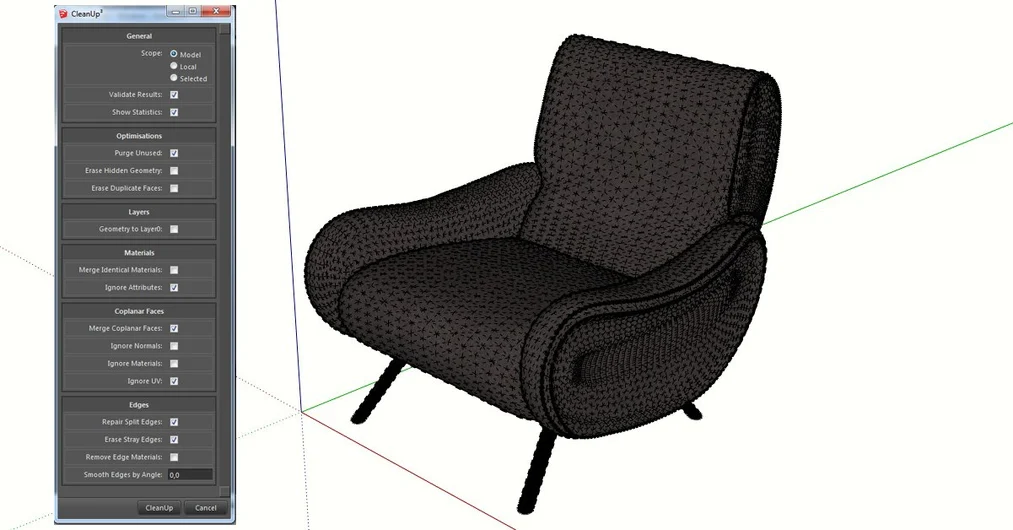
Models downloaded from the internet usually contain a lot of unnecessary geometry that weighs down the scene into which they are inserted. When we enable the Hidden geometry option, we can see how many edges make up the object. Some of them are generally not needed for the model to display properly and only burden the file we are working on.
The main issue with SketchUp is its tendency to crash. No matter how powerful a computer we have, the program will still exhibit this trait. You could say it's just "its charm." When there's too much geometry in the scene, the program simply starts running less efficiently.
The program’s interface offers a method for purging unused textures and removing errors (Window -> Model Info -> Statistics). However, this option often isn’t enough. We could “manually” clean the model of unnecessary geometry with the Eraser tool, but that would take a lot of time. To streamline and simplify this process, the CleanUp plugin comes to the rescue.
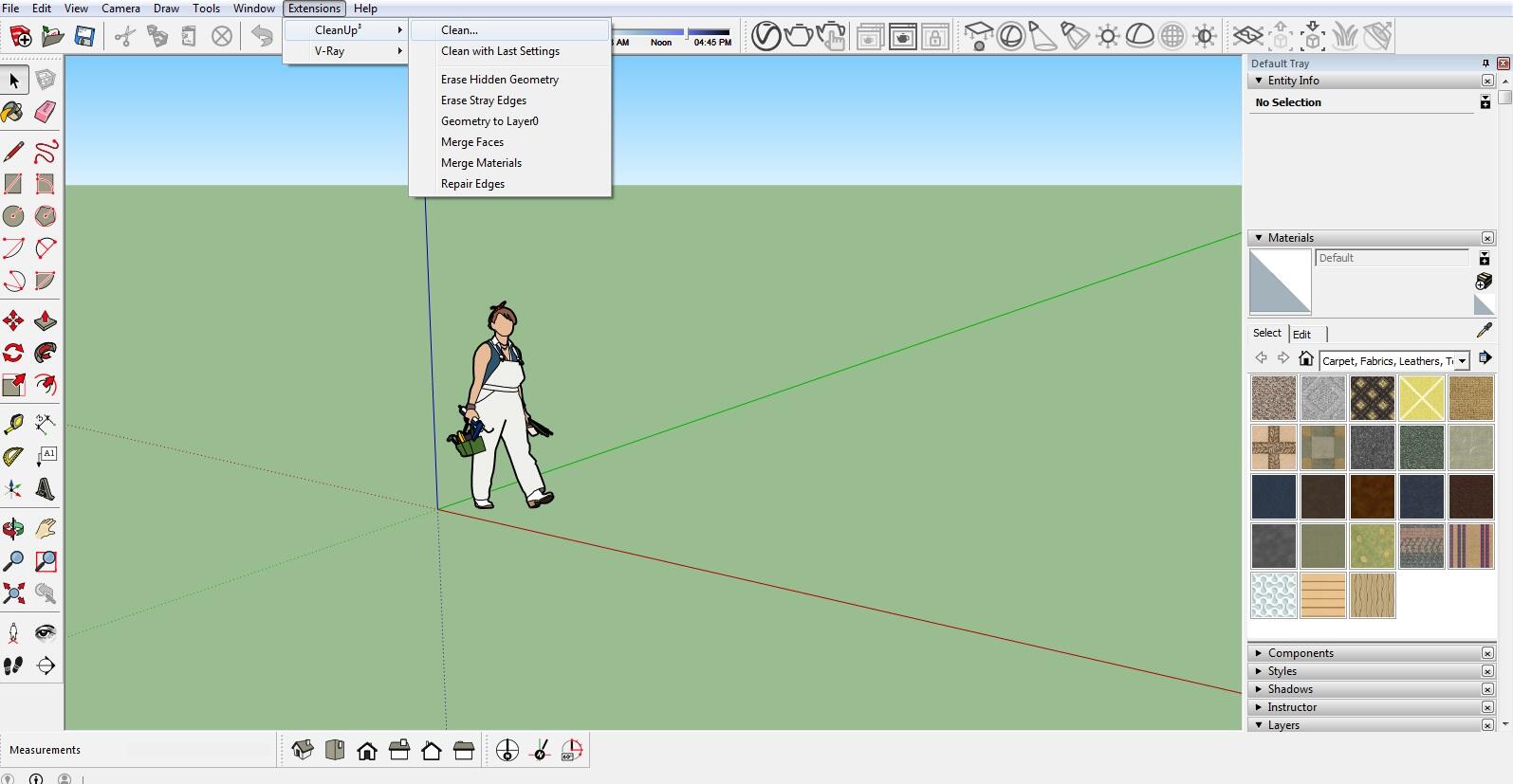
The first step is to download the plugin. We can do this directly from within SketchUp by going to Window -> Extension Warehouse, or download it from the Extension Warehouse website.
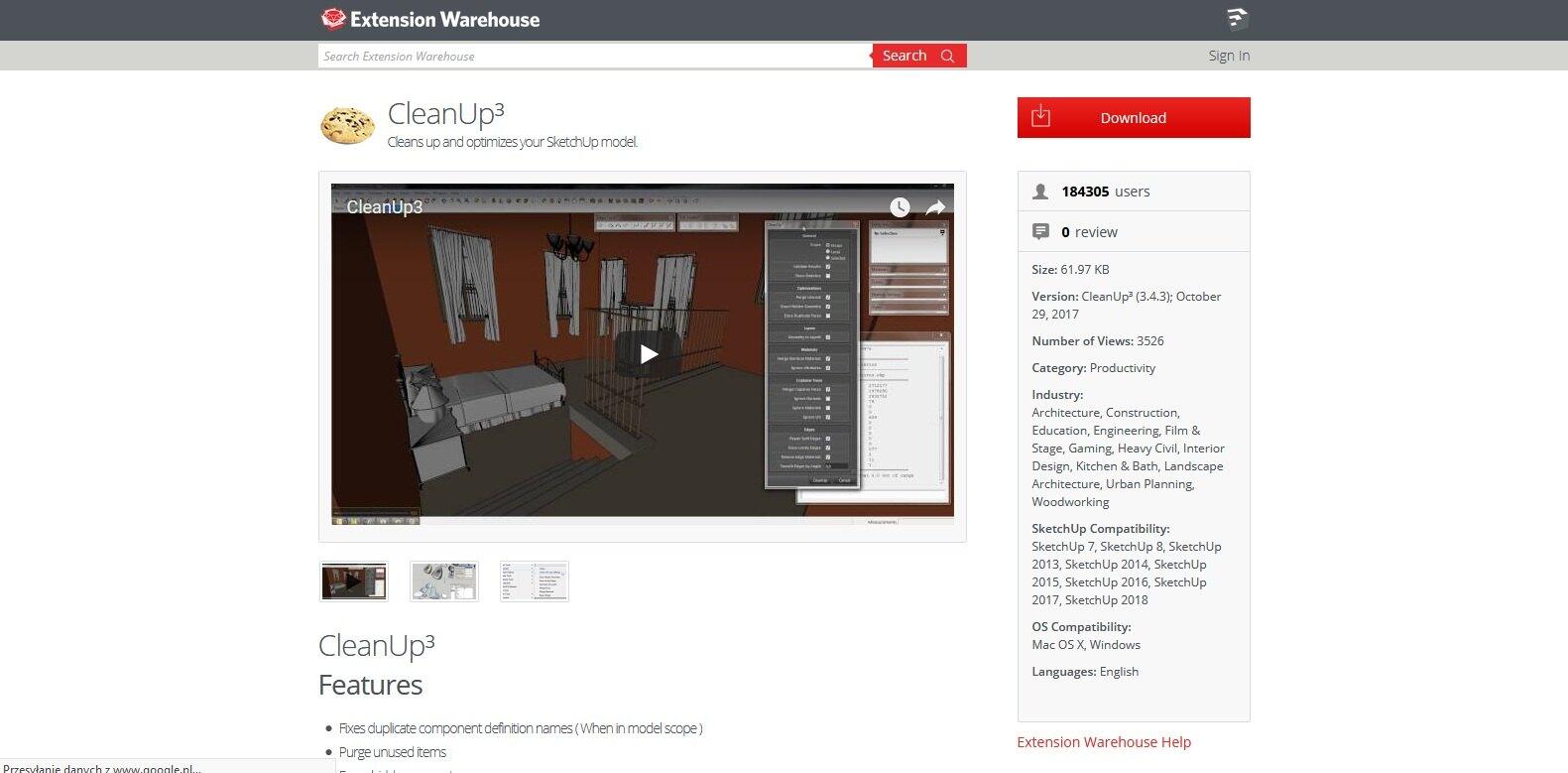
For more information on how to install plugins, refer to our earlier guide - SketchUp how to install a plugin - Guide, tutorial.
The plugin window looks like this
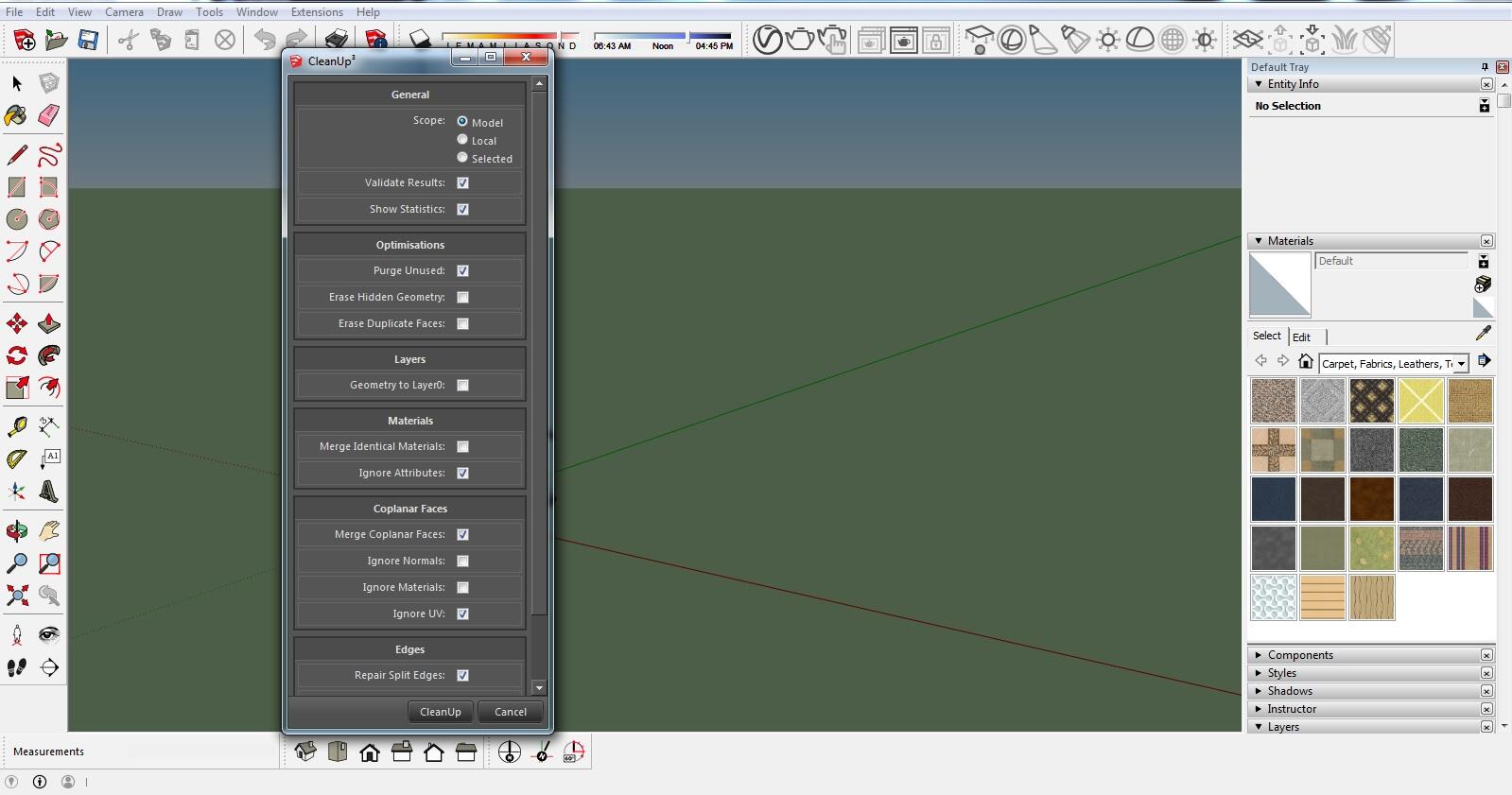
Now let's go over the tool parameters - CleanUp
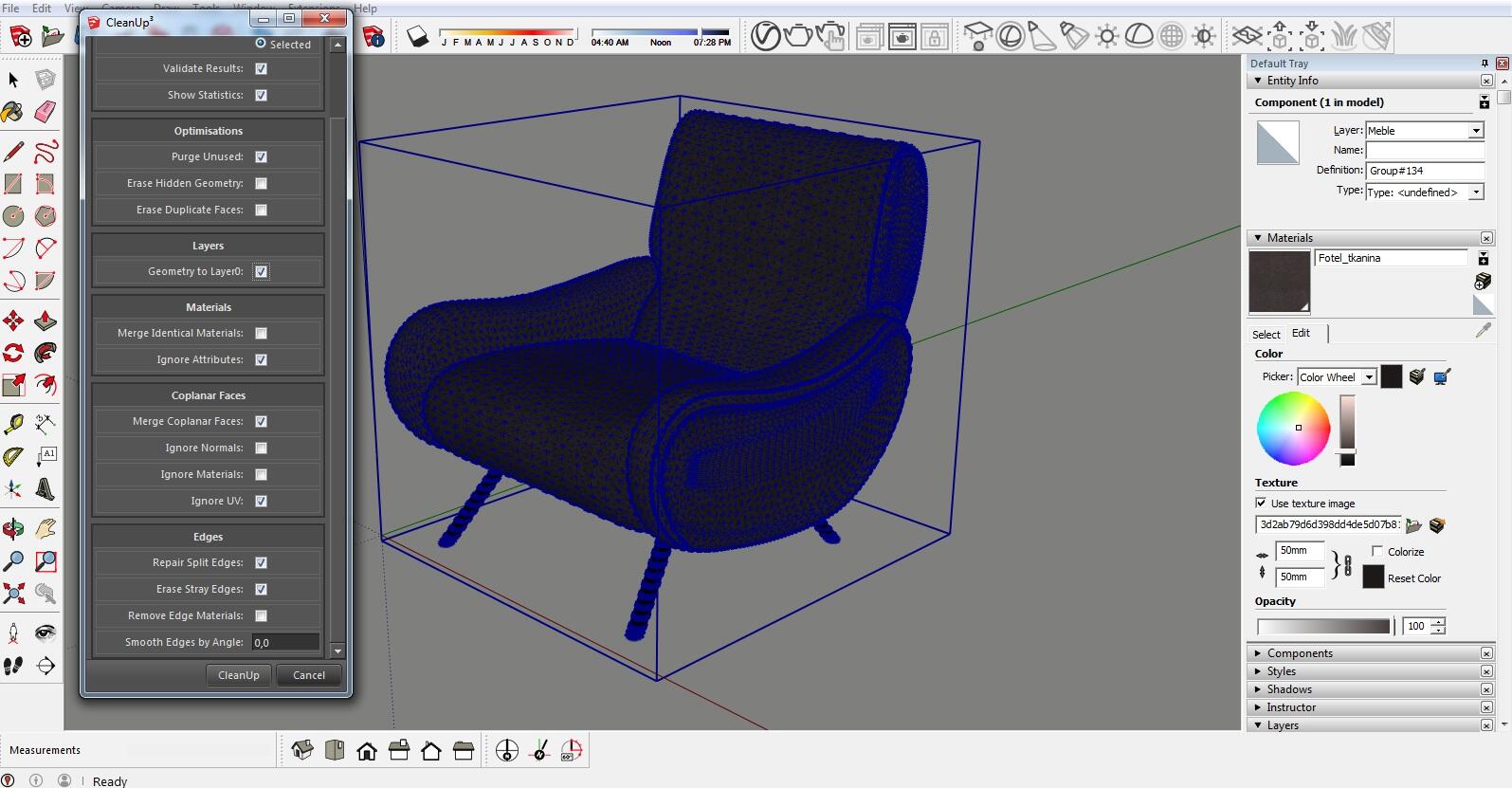
- Scope – allows us to choose the range the program should clean. The options are entire model, local or selection.
- Validate result – fixes various errors and issues in the model.
- Optimisation – Purge Unused – leave this enabled. The next two options are used to remove hidden geometry and overlapping faces. The latter feature runs very slowly, so only enable it as a last resort.
- Layers – when checked, moves all model geometry to layer 0.
- Materials – enabling Merge identical materials will remove all materials present in the scene that are not applied to any geometry.
- I recommend leaving the rest of the settings at their default values.
Plugin operation - CleanUp
For the purpose of this tutorial, let us enable hidden geometry.
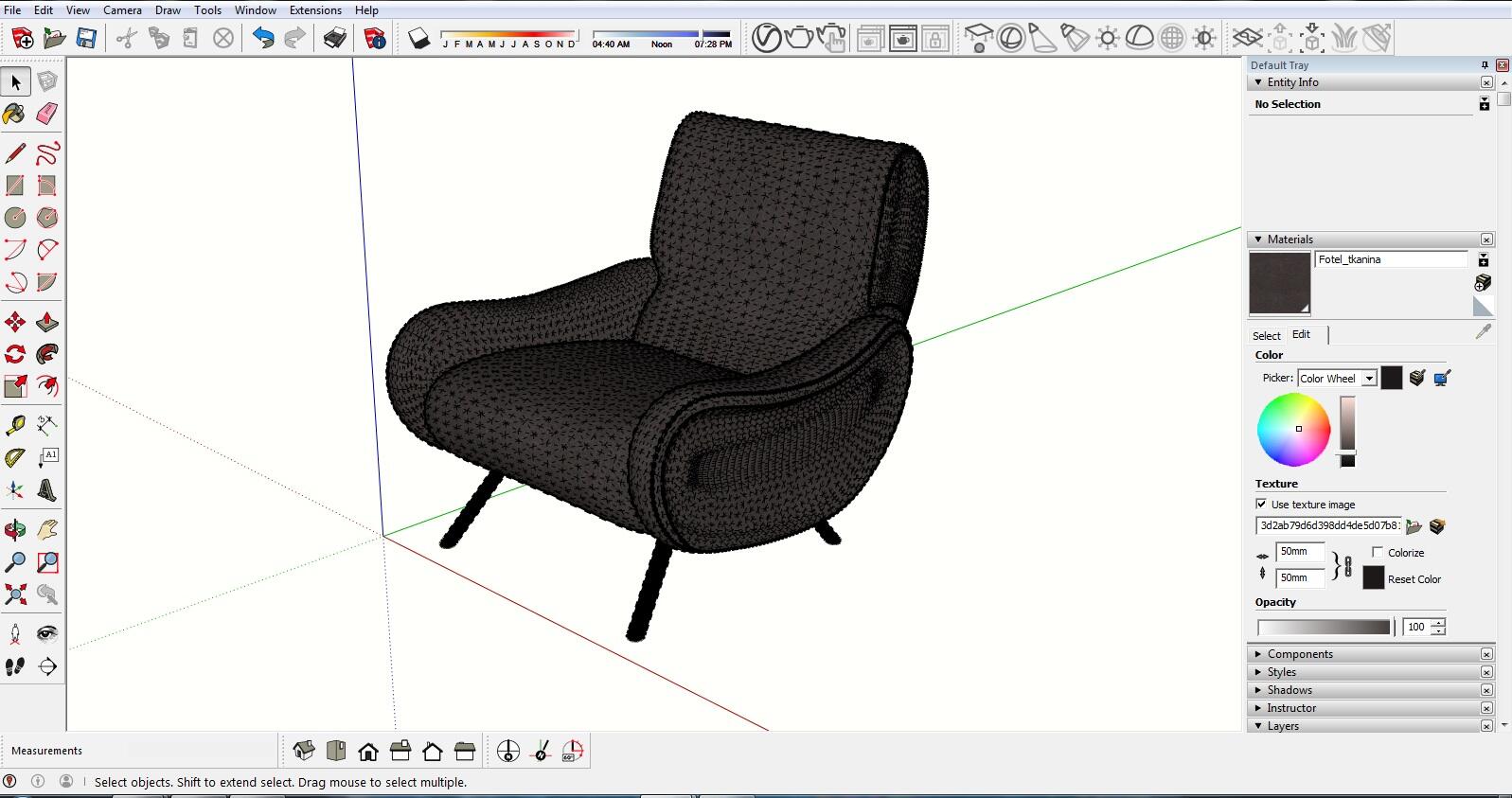
Let us select the object with the Select tool and run the plugin (set the parameters).
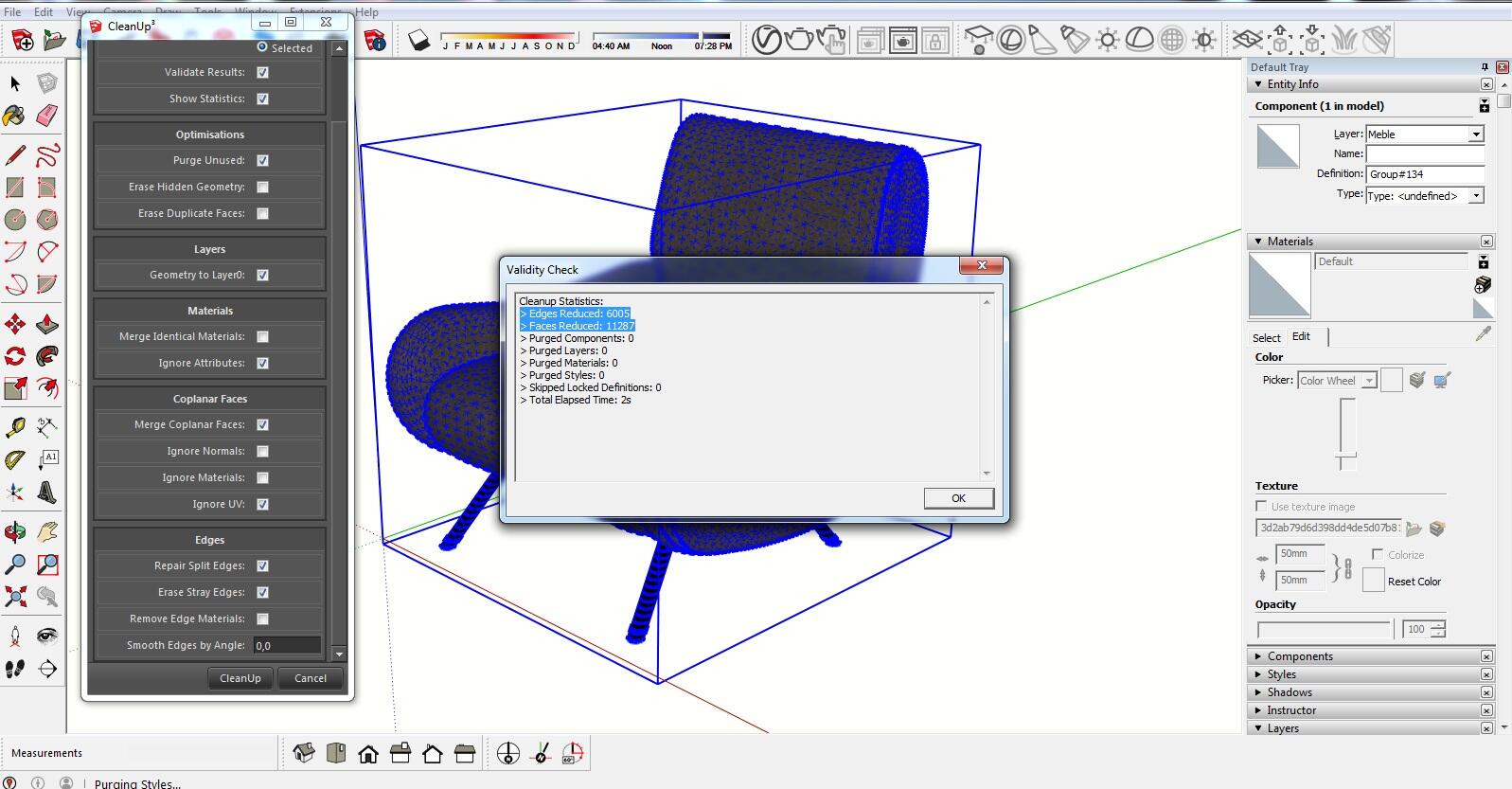
Let us take a look at the statistics that appear after cleanup. We can see how much unnecessary geometry the plugin removed.
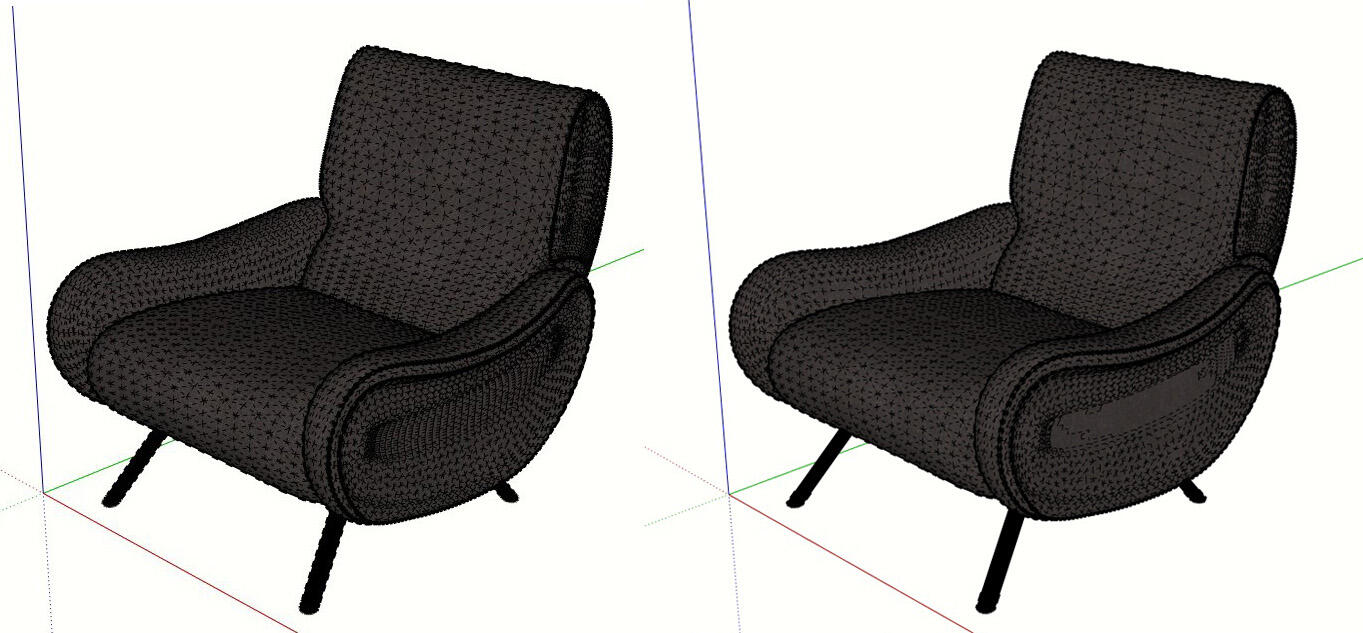
Let us compare the geometry before and after using the CleanUp plugin. The difference isn't very obvious, but the polygon count has been significantly reduced.
Find out more about the CleanUp plugin in our course - SketchUp + V-Ray - Creating a visualization of an elegant apartment.
If you enjoyed this tutorial, we encourage you to check out our online SketchUp courses.
Best regards!
Author

Przeczytaj o programie Sketchup na naszym blogu
-
![Profile Builder 4 or Magic Molding? Comparison of Ornamentation Plugins in SketchUp]()
Profile Builder 4 or Magic Molding? Comparison of Ornamentation Plugins in SketchUp
How does Profile Builder 4 differ from Magic Molding? Scope, pricing, profile libraries, and learning curve. Find out which plugin fits your projects. -
![The Best Free SketchUp Plugins for Interior Designers in 2026!]()
The Best Free SketchUp Plugins for Interior Designers in 2026!
Which SketchUp plugins are really worth having? Discover 7 free extensions for interior designers and find out which ones have just stopped being free! -
![English wainscoting in SketchUp - how to design wall panels step by step]()
English wainscoting in SketchUp - how to design wall panels step by step
How to design English wainscoting in SketchUp? Learn the rules for panel division, wainscot proportions, and speed up your work with the Magic Molding plugin. -
![Reversed Faces in SketchUp – why are blue faces showing and how to fix them?]()
Reversed Faces in SketchUp – why are blue faces showing and how to fix them?
Blue faces in SketchUp are flipped faces. Learn where they come from, how to quickly locate and fix them before they mess up your render or model export.

Want to learn Sketchup? Check out our free online course!