EN
EN PL
PL ES
ES


Publication date: 06-05-2025 | Update date: 06-05-2025 | Author: Piotr Kurpiewski

-
Online courses
- All
 3ds Max
 AI - Artificial Intelligence
 Blender
 Corona renderer
 GstarCAD
 LayOut
 Photoshop
 Interior Design
 Revit
Revit Sketchup
 Stable Diffusion
 V-ray
V-ray
"Online courses" are comprehensive online training programs that will help you quickly master the software you are interested in.
- Plugins
- 3D Models
- Help
- Articles
SketchUp - 3D Warehouse - What is it and how to use it? - Model Library - Guide, Tutorial
Although SketchUp allows you to model any object, you don't have to do everything yourself. Instead, use the 3D Warehouse model library. It's the largest collection of free models that you can use in your projects. Most models can also be used in commercial projects. Downloading models is very simple. Select a 3D object, click Download, and choose the desired format. In the rest of the article, we describe how to navigate through the extensive library archive.
Index
SketchUp is an excellent, intuitive tool for fast modeling. You don't have to do everything yourself. You can leverage ready-made models that will significantly speed up your work. This is especially important when designing interiors and selecting diverse furnishings.
What is 3D Warehouse?
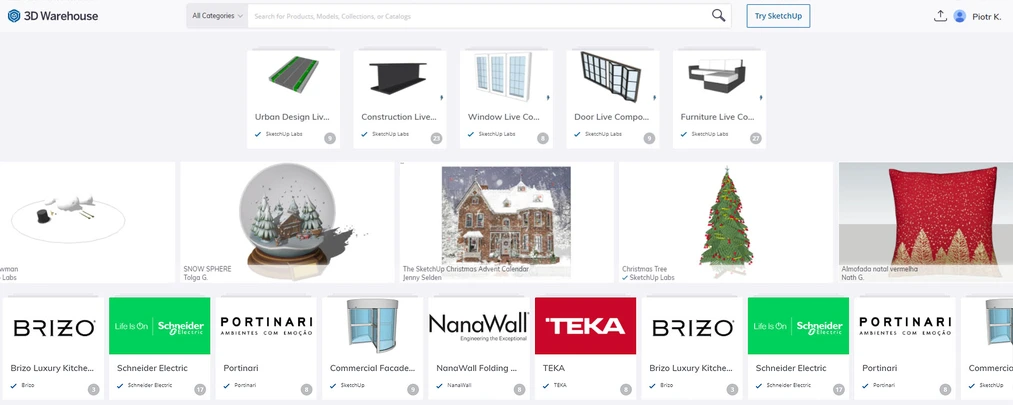
3D Warehouse is the largest library with millions of free 3D models fully integrated with SketchUp software. Resources can be downloaded in the application by selecting Window / 3D Warehouse in the top menu bar, or directly from the website: www.3dwarehouse.sketchup.com.
Who can use the 3D Warehouse library?
Anyone can use the library by registering on the service using their email address or an existing Google or Apple account. According to the Trimble terms (the developer responsible for the 3D Warehouse and SketchUp catalogs), downloaded models can be used for free, even for commercial purposes. There are some limitations, but they apply in very rare cases. If this topic interests you, see the frequently asked questions about model usage terms.
How to download models from 3D Warehouse?
To download assets from 3D Warehouse, simply click the Download button on any product page, then choose the appropriate .skp file format. Remember that you can easily open an older format in newer software, but it does not work the other way around.
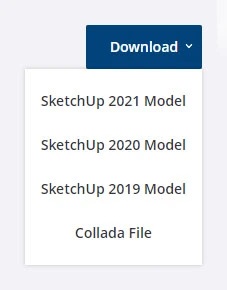
With the introduction of time-based subscriptions for SketchUp, the developer Trimble has limited the .skp files in the catalog to the past 3 years. This means that in 2022 the oldest format you can download will be version 2020. So if you have a perpetual license for SketchUp 2017, using 3D Warehouse will be more challenging for you.
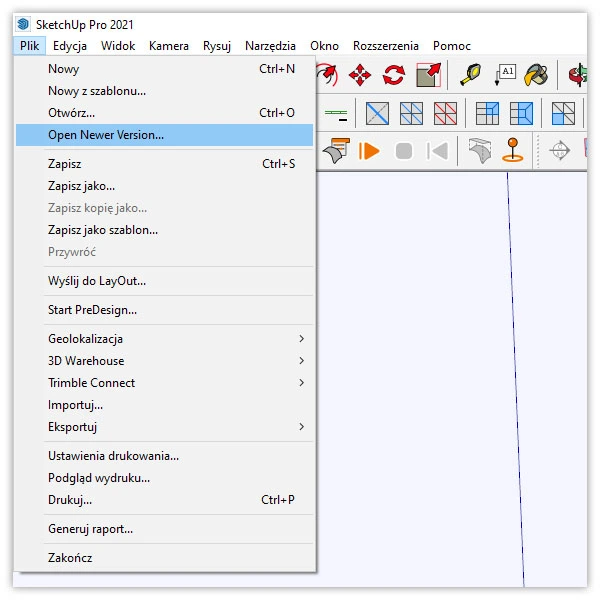
You can't open newer files directly in older software. To do this, you need to use a special extension Eneroth Open Newer Version. This plugin, once installed, adds an Open Newer Version… option to the File menu in SketchUp.
Filtering
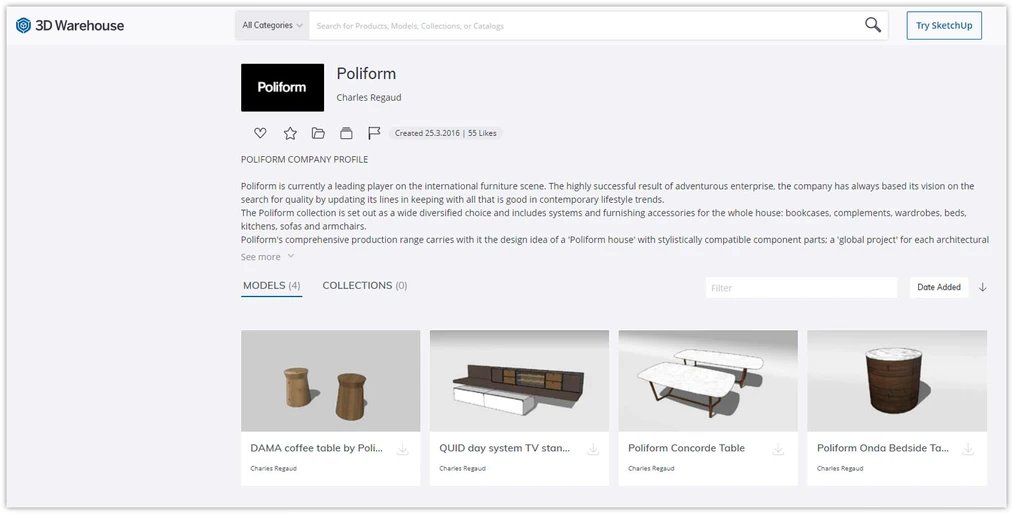
Let's return to the 3D Warehouse catalog itself. With so many resources, it's difficult to navigate the site. That's why Trimble introduced several content filtering options. The easiest way is to use the search bar at the top of the page and enter any keyword, e.g. "sofa" or more specifically "poliform sofa". The first keyword yields many more results (>1000) than the second (2).
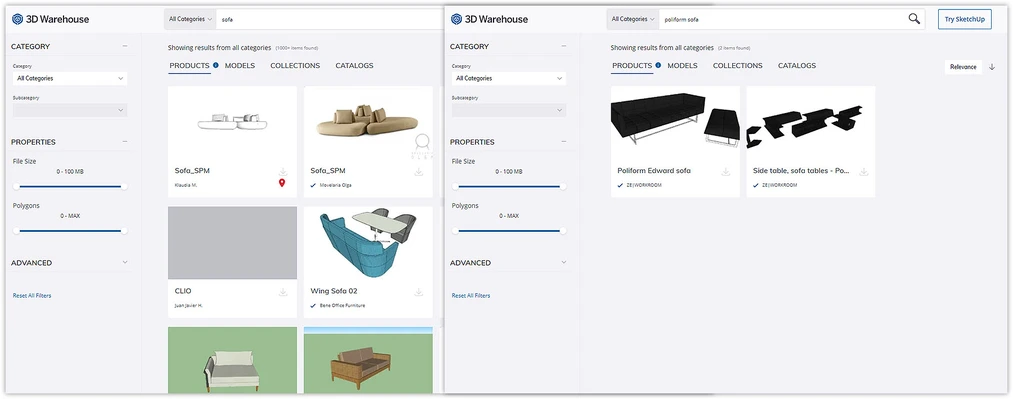
However, the results are limited to the Products category, meaning models from verified manufacturers. Switching to Models will increase the number of assets matching the search term "poliform sofa" from 2 to 47.
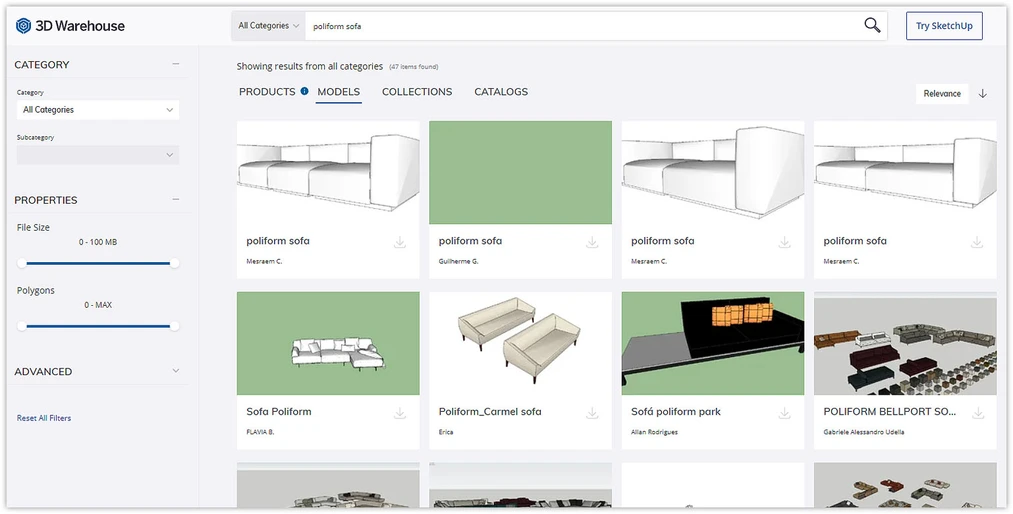
Filtering by collections only (i.e. Collections) yields a single result. Collections are sets of models created by regular 3D Warehouse users. Conversely, Catalogs are collections from verified manufacturers. Since the standard results in the Products and Models groups are not curated, it's worth checking the Collections tab, where you can often find high-quality models grouped by style, type, or brand.
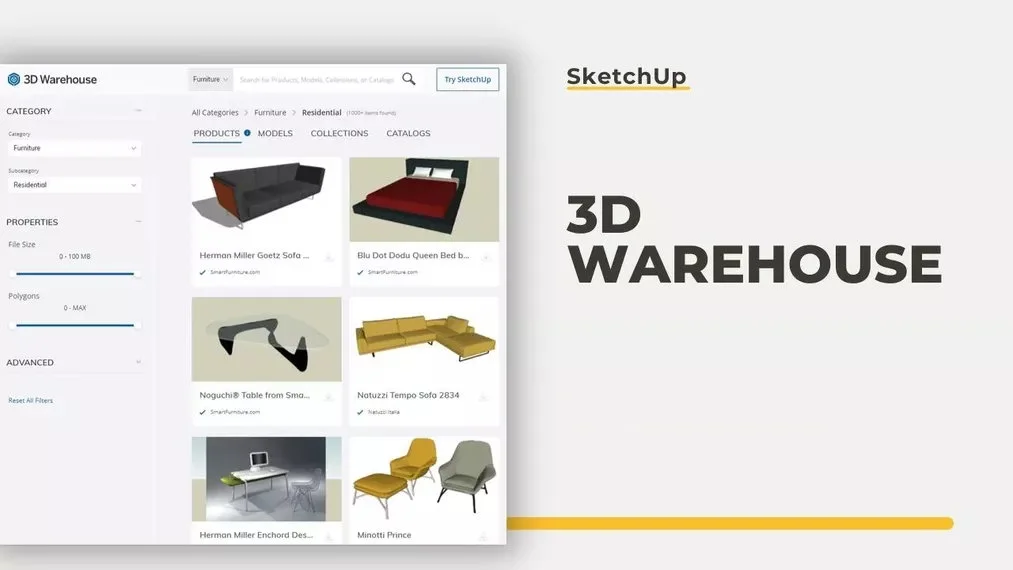
Another way to navigate the 3D Warehouse library is by choosing a category. If you don't need a specific product and just want to browse, select any category, e.g. Furniture, and then a subcategory, e.g. Residential.
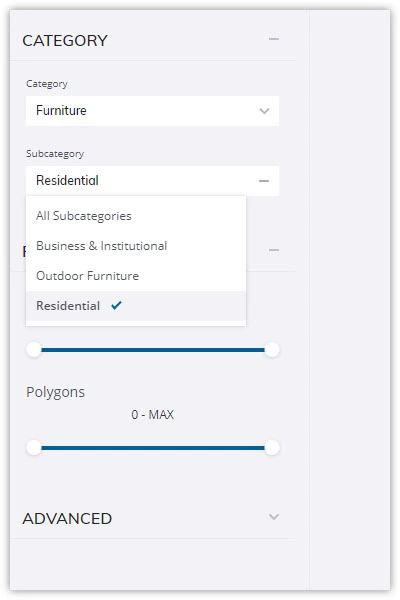
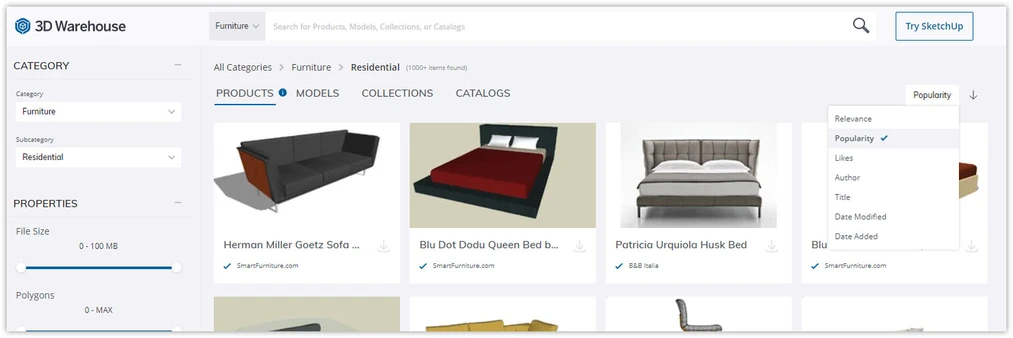
The displayed results will be limited to furniture intended for residential architecture. Again, you can switch between Products, Models, Collections, and Catalogs. This time, however, the search results will be much more general.
The default sorting is by relevance, but you can change it to, for example, sorting by popularity, which will place the most downloaded models at the top. They are more likely to be high-quality assets.
Model page
Clicking on the preview image of any result will open a frame with a brief description of the model. There you will find information about the number of materials and polygons in the scene, as well as the file size and creation date.
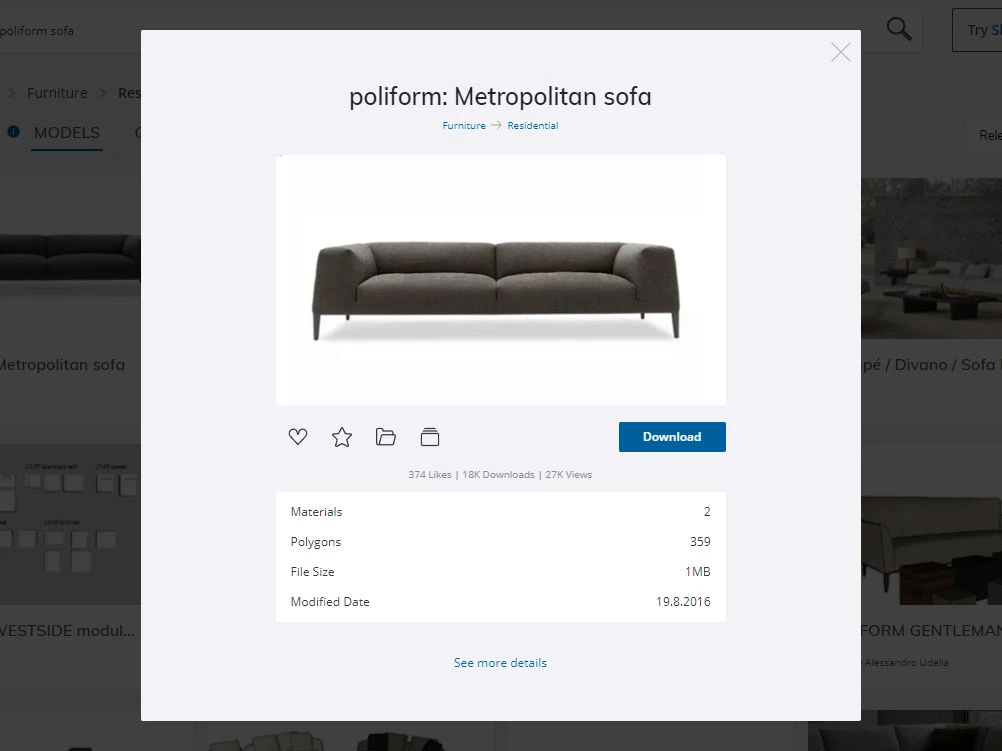
After selecting See more details, you will be redirected to a dedicated page where you will find even more information about the model. It's a great opportunity to analyze it in detail before downloading. You can even preview it in an online viewer very similar to the SketchUp workspace.
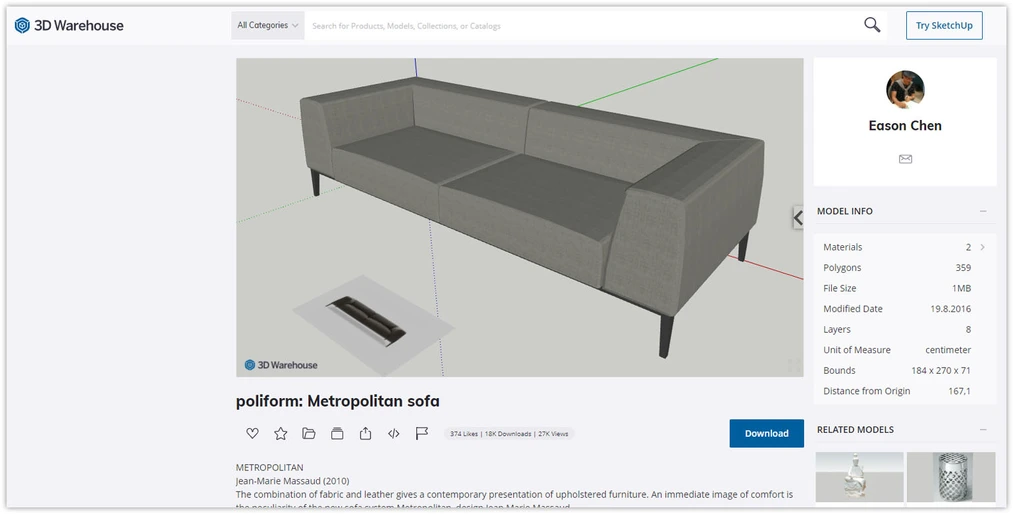
As you can see, the preview image does not always accurately reflect what is in the .skp file. In the case of the Poliform sofa, we are dealing with a low-quality model. You could have predicted this by looking at the number of polygons, the file size, or the comment left by another user.

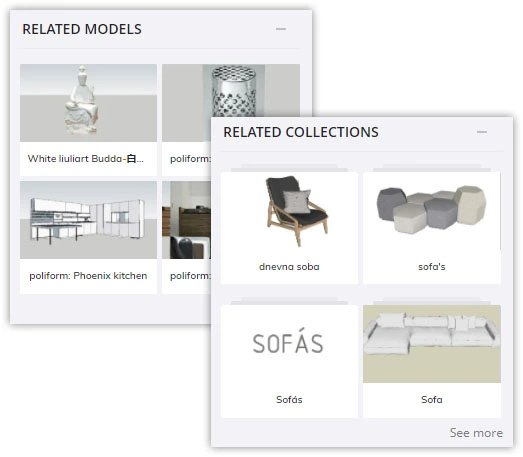
Pay attention to the mentioned data and learn to distinguish good assets from bad ones. And once you find a good one, be sure to check the author's other files and the Related Models and Related Collections tabs, as you will likely find models of similar quality there.
Summary
3D Warehouse is a huge 3D library with millions of diverse resources available to virtually everyone. It is a great aid in work—especially with interiors. I hope that after reading this article you will navigate it confidently and fully harness its potential.
And if you want to further develop your skills in creating compelling interior designs, be sure to check out our SketchUp course offerings!
Author

Przeczytaj o programie Sketchup na naszym blogu
-
![Magic Molding - stucco, moldings, and cornices in SketchUp in seconds]()
Magic Molding - stucco, moldings, and cornices in SketchUp in seconds
Does modeling baseboards, cornices, and stucco take you precious hours? Give up traditional methods and try the Magic Molding plugin, which will generate them for you. -
![AutoCAD or SketchUp - choose a course to start in architecture]()
AutoCAD or SketchUp - choose a course to start in architecture
Wondering which to choose: AutoCAD or SketchUp? Discover the differences, choose the right course, and start designing architecture and interiors -
![Unusual Shapes and Tiles in SketchUp – Gores, Hexagons, and Fans]()
Unusual Shapes and Tiles in SketchUp – Gores, Hexagons, and Fans
Hexagons and gores in SketchUp in 5 seconds? Discover how to model the most challenging tile shapes. Read now! -
![3 ways to create a floor in SketchUp – from texture to a 3D model]()
3 ways to create a floor in SketchUp – from texture to a 3D model
From a flat texture to advanced 3D. Discover 3 methods for creating a floor in SketchUp and uncover our reliable "gamechanger". Read on!