EN
EN PL
PL ES
ES


Publication date: 17-12-2025 | Update date: 17-12-2025 | Author: Piotr Kurpiewski

-
Online courses
- All
 3ds Max
 AI - Artificial Intelligence
 Blender
 Corona renderer
 GstarCAD
 LayOut
 Photoshop
 Interior Design
 Revit
Revit Sketchup
 Stable Diffusion
 V-ray
V-ray
"Online courses" are comprehensive online training programs that will help you quickly master the software you are interested in.
- Plugins
- 3D Models
- Help
- Articles
Homestaging with AI: how to change the interior design in an existing photo with Nano Banana Pro?
Do you have a finished visualization but the client wants to change the furniture? Instead of going back to the 3D model, use Nano Banana Pro for instant homestaging. In this article, we present the complete workflow: from quickly changing the interior style, through precisely inserting specific products from the store (multimodality), all the way to a graphic trick with the "red circle" and integration with Photoshop. Find out how to edit existing photos and save hours of rendering time.

Index
Do you know this scenario? You have a finished visualization or a photo of an investment apartment. The client is thrilled with the layout of the walls but turns up their nose at the decor. "What if this sofa were green?", "This interior is too cold, let’s add curtains", "Can we check how that lamp from the catalog would look here?".
Not long ago, this meant going back to the 3D model, searching for new assets, re-texturing and... more hours of rendering. The alternative was a tedious battle with perspective in Photoshop. Today you have a third option. Nano Banana Pro acts like your intelligent assistant, allowing for lightning-fast virtual homestaging. In this article, I’ll show you how to edit finished images, change styles and insert specific products without the need to re-render.
If you don’t yet know how to create visualizations from scratch, be sure to first check out the article: SketchUp and Nano Banana Pro: Photorealistic Visualizations in 5 Minutes.
Quick Interior Makeover: How to Change the Design Style with One Click?
This is the ideal solution for investors, flippers and designers in the concept search phase (moodboard). Imagine you have a photo of a "tired" ’90s living room or a bare developer finish. You want to quickly show the potential of this property without spending time on a full project.
CHECK COURSES – AI – ARTIFICIAL INTELLIGENCE FROM THE BASICS
In this workflow, you upload a single photo to Nano Banana Pro (in the Gemini or Google AI Studio interface). Your goal is to preserve the architecture (windows, floor, walls) but completely replace the furniture layout.
How to do it? The key is a prompt that protects what should stay and changes the rest. Example instruction:
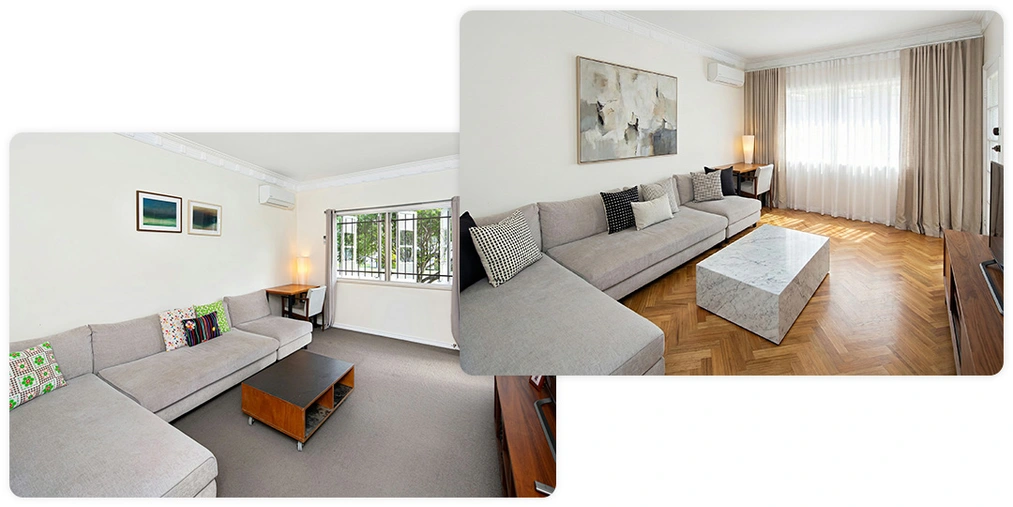
"Based on attached image, replace the carpet with oak herringbone parquet, the coffee table with a solid marble block, and the small wall art with one large abstract oil painting. Add multilayered natural linen and white sheer curtains. Change the TV console to a minimalist walnut unit. Finally, update the sofa cushions to black and white fabrics."
The AI automatically recognizes what is a permanent architectural element and what is movable equipment. As a result, you get a visualization that preserves the room’s layout but presents a completely new vibe.
Prompts (i.e. text instructions) you can also write in Polish. Although the model was originally trained on English (and Chinese!) datasets, it understands virtually all languages of the world. The most important thing is to be precise, unambiguous and clearly indicate what should be changed and what should remain unchanged.
Virtual Furnishing: How to Insert a Specific Store Product into a Visualization?
Let’s move to a higher level of insight. This workflow is essential for interior designers and furniture manufacturers. Here it’s no longer about “some” sofa, but about “THAT specific” sofa from the catalog. We cover the broader landscape of this topic in the article: Artificial Intelligence – AI – for Furniture Manufacturers.
Nano Banana Pro offers a multimodality feature. This means the model can "see" and combine information from multiple images at once. You can upload a photo of your interior and a packshot of a product (e.g. a lamp or an armchair) on a white background (though it could just as well be a low-quality photo taken in a messy basement).
The Secret of an Effective Product Prompt
To make the model know exactly what to do, you must use a specific syntax. Instead of generalities, apply this structure:
"Using the reference images, change the paper pendant lamp on the interior scene for the rattan lamp on the packshot. Keep the realistic lighting and perspective."
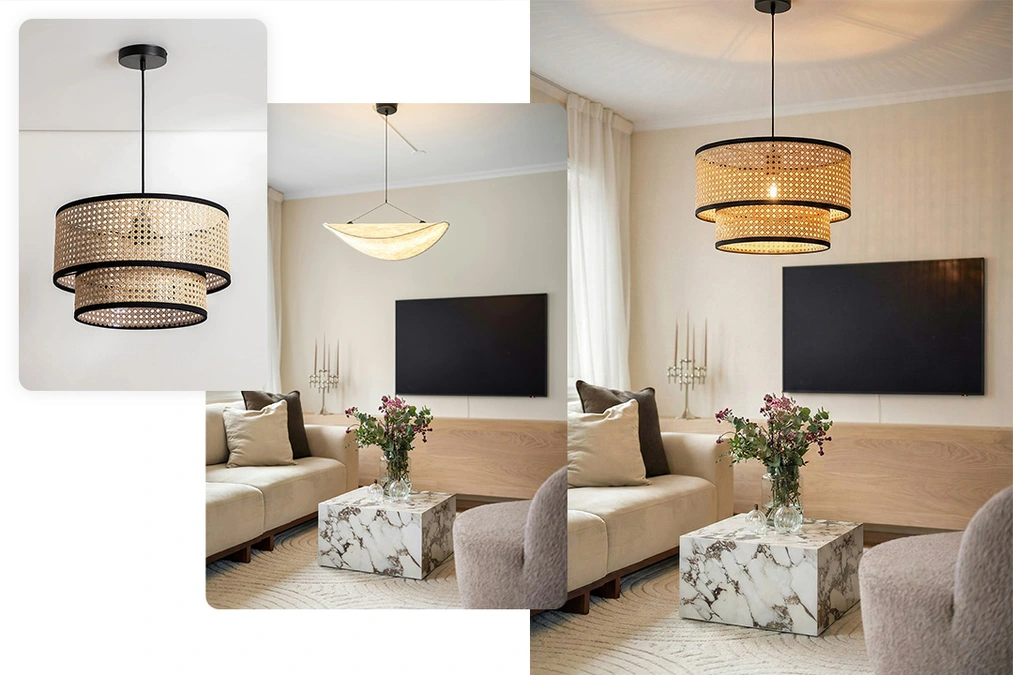
Why does this work? The phrase "using the reference images" activates the comparative mode in the model. You clearly indicate: object A (the existing paper pendant lamp) should be replaced with object B (the new rattan lamp from the packshot). Nano Banana Pro not only pastes the item but also interprets its material—if the lamp has a light-transmitting shade, the AI will generate appropriate highlights and shadows in the environment. You can’t achieve this effect in Photoshop!
How to Precisely Edit Photos with AI? The "Red Circle" Method
Many people ask: "how to mark the area to change in Nano Banana Pro?". Interfaces like Google AI Studio or Gemini currently lack a classic inpainting brush or any other way to pinpoint a specific fragment. However, we have a brilliant, "hacker" method for that.
If the model is stubborn and doesn’t understand a verbal command (e.g. adds shelves not necessarily where you want them), you have to help it visually:
- Open your photo in any simple graphics program (Paint, Canva, Photoshop).
- Draw a clear red circle around the object you want to change or draw a visible arrow clearly pointing to it.
- Upload the prepared image to Nano Banana Pro.
- Enter the prompt: "Change the armchair inside the red circle to a leather vintage chair. Remove the red circle in the final result."

The model perfectly understands such visual cues. It treats the red outline as a temporary focus marker, makes the change inside it, and finally—at your request—removes our "scribbles", leaving a clean, photorealistic image.
Nano Banana Pro and Photoshop - Generative Fill for Professionals
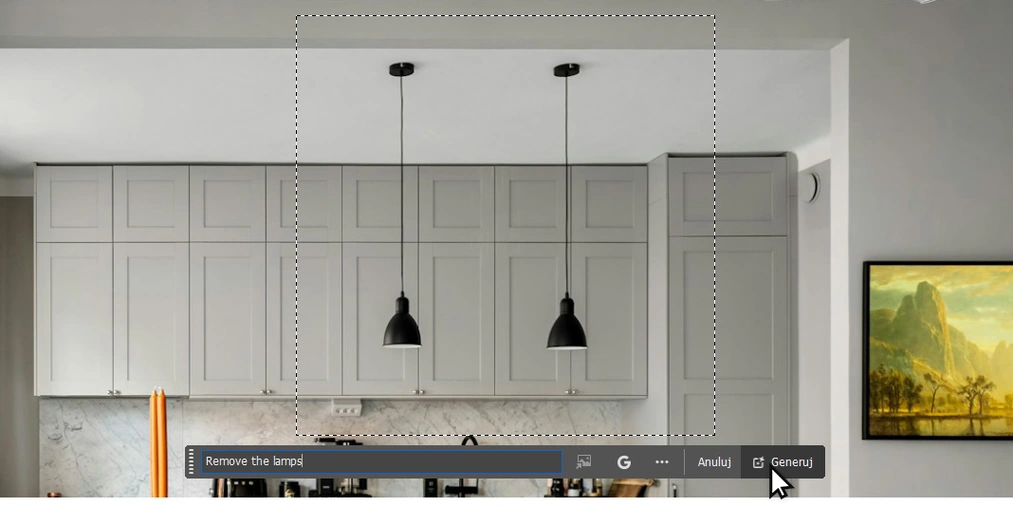
For users of the Adobe suite, we have great news. The Nano Banana Pro model is available as a partner model within the Adobe Firefly ecosystem and can be used directly in Photoshop via the Generative Fill tool.
When is it worth using this?
- When you need surgical precision in selection.
- When you want to remove an object ("Remove this vase") and fill the background.
- When you want to change the texture or color of a specific part of a wall.
Important limitation: In Photoshop mode, Nano Banana Pro relies primarily on the image context within layers and your text description. You don’t (yet) have the same easy ability to work with additional reference images as in Google AI Studio. Therefore, for inserting specific products from packshots I recommend the method described in the previous section, and Photoshop for precise retouching.
Will the Furniture Fit? Scale and Details in AI Homestaging
The artificial intelligence "reads" perspective and wall junctions, so the inserted furniture usually has correct dimensions. However, AI doesn’t have a measuring tape in its eyes. Sometimes the inserted armchair may look like a child's piece of furniture, and the lamp like a giant spotlight. In such situations, the best way to work is simply iteration (trial and error) and refining the prompt description.
It’s worth emphasizing, however, that even if the model sometimes stumbles on scale, it more than compensates in terms of plasticity and material physics. Nano Banana Pro intuitively captures nuances that are extremely difficult to achieve in traditional rendering. A great example is semi-transparent fabrics. Adding linen curtains to a dining room ("Add floor-to-ceiling beige linen curtains") will make the model automatically generate sunlight softly filtering through the weave of the fabric—a result you would have to wait much longer for in engines like V-Ray.
What Next? Bring Your Interiors to Life!
Now that you know how to furnish an empty apartment and swap products, it’s time for the next step. Nothing sells a visualization like the presence of occupants. But how do you add them so they don’t look fake? You’ll read about that in the next article: People in Visualizations: How to Add Realistic Characters in Nano Banana Pro?
Do you want to see all these workflows, learn how to create project videos, and take it to the next level by using artificial intelligence in your daily work? Check out our comprehensive AI visualization and video course - Nano Banana, FLUX Kontext, Veo etc. in Architecture and Design.
Author

Przeczytaj o programie AI - Artificial Intelligence na naszym blogu
-
![Virtual staging and AI photos in real estate listings - what does the AI Act change?]()
Virtual staging and AI photos in real estate listings - what does the AI Act change?
The AI Act vs real estate. Does virtual staging require an AI label? Find out how to avoid legal pitfalls and properly label photos. -
![How to Label AI Content According to the Law? Ready-Made Formulas for Designers and Archviz Studios.]()
How to Label AI Content According to the Law? Ready-Made Formulas for Designers and Archviz Studios.
How to Legally Label AI Visualizations? Check When a Label Is Mandatory and Copy Ready-Made Formulas for Your Projects. -
![Do you have to label visualizations as AI? What does the AI Act really say and what changes on August 2, 2026?]()
Do you have to label visualizations as AI? What does the AI Act really say and what changes on August 2, 2026?
AI Act from August 2! Do you have to label 3D visualizations as AI? Check where the legal boundary lies between concept and deepfake. -
![AI for furniture manufacturers - See how to create furniture packshots and catalog arrangements with raya.design]()
AI for furniture manufacturers - See how to create furniture packshots and catalog arrangements with raya.design
Packshots without time-consuming sessions? Discover Raya Design. Change upholstery and create arrangements with AI in moments. See how it works!