EN
EN PL
PL ES
ES


Publication date: 23-05-2025 | Update date: 23-05-2025 | Author: Mateusz Ciećwierz

-
Online courses
- All
 3ds Max
 AI - Artificial Intelligence
 Blender
 Corona renderer
 GstarCAD
 LayOut
 Photoshop
 Interior Design
 Revit
Revit Sketchup
 Stable Diffusion
 V-ray
V-ray
"Online courses" are comprehensive online training programs that will help you quickly master the software you are interested in.
- Plugins
- 3D Models
- Help
- Articles
Why does rendering hang, crash or take a very long time? Guide - 3ds Max
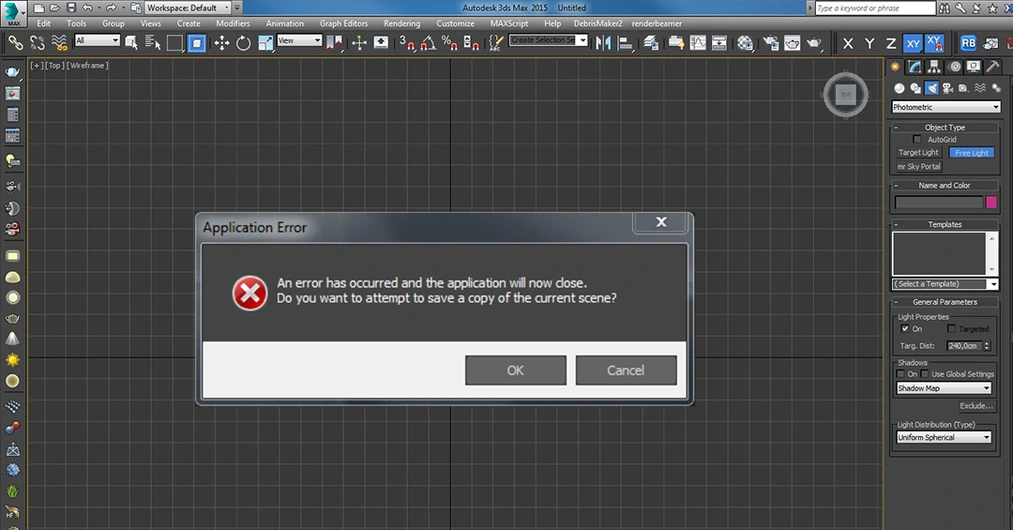
If you’re working on visualizations, there’s a very good chance that sooner or later you’ll encounter issues with a hanging renderer. Situations can vary, but they usually end the same way: the render cannot be completed. Sometimes the program may hang immediately after clicking the Render button, sometimes halfway through the calculation, and other times it may stop at a certain stage and remain there.
Index
As a 3ds Max user, I describe situations that occur during work in this program, but many of them may also apply to other 3D environments. The tips in this article will also prove useful when using other rendering engines or visualization software.
Why Is 3ds Max Freezing?
It's worth noting that the latest versions of 3ds Max, especially those released after 2020, are significantly more stable than their predecessors. Versions from 2012–2013 could freeze for no apparent reason without a quick way to solve the problem. In this article, however, I will focus on specific cases of the program freezing during rendering – as well as possible causes and solutions.
Are there materials from different render engines in the scene?
If you use V-Ray, avoid mixing materials from other engines, such as Standard or Arch&Design. This situation can not only slow down rendering but also cause artifacts, color splotches, or a complete freeze of the process.
How to avoid this? Conversion scripts are helpful – for V-Ray you can use the V-Ray Scene Converter tool, which allows you to automate the conversion of incompatible materials.
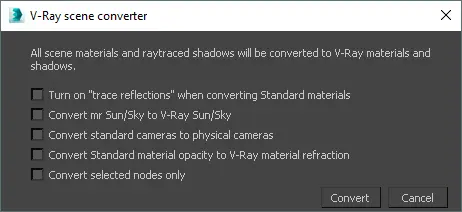
If you import a scene from another program, it probably contains different types of materials. The simplest solution is to select all objects and assign them a single V-Ray material – this way you'll be sure that no incompatible material remains in the scene.
CHECK ONLINE COURSES - 3DS MAX FROM THE BASICS
Are there lights from different engines in the scene?
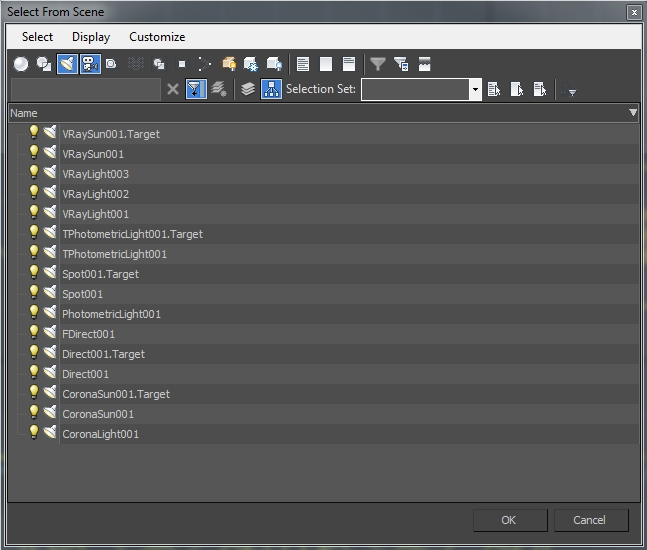
As with materials, it's best to avoid mixing V-Ray lights with those from Corona, Arnold, or the default Standard lights. While some of them can be configured to work with V-Ray, in practice this often leads to unpredictable results.
Models from external libraries may contain hidden lights. Therefore, after importing them, it's worth using the “Unhide All” function and reviewing the object list – unwanted lights can be easily identified and removed this way.
Are there models from external libraries in the scene?
Ready-made models are standard in a designer's workflow, but not all are made correctly. Often the cause of a scene freeze can be a single faulty object – a lamp, a plant, or a decoration. If you suspect a model is causing the problem, temporarily remove it and check if the render starts. If needed, repeat this process until you identify the problematic element. It's time-consuming, but often the only effective solution.
Do you have enough RAM?
If you're sure that all materials, lights, and models are fine, yet the render still freezes, it may be a matter of insufficient RAM. Typical symptoms include: indefinitely long Light Cache calculations, the scene freezing midway through rendering, or a drastic slowdown of the computer.
During rendering, open Task Manager (Ctrl + Shift + Esc) and check resource usage. If the CPU is running at full power and the RAM is not 100% utilized – everything is working correctly. However, if the RAM is fully occupied and the CPU uses only a fraction of its power, rendering may halt and the entire system become unresponsive.
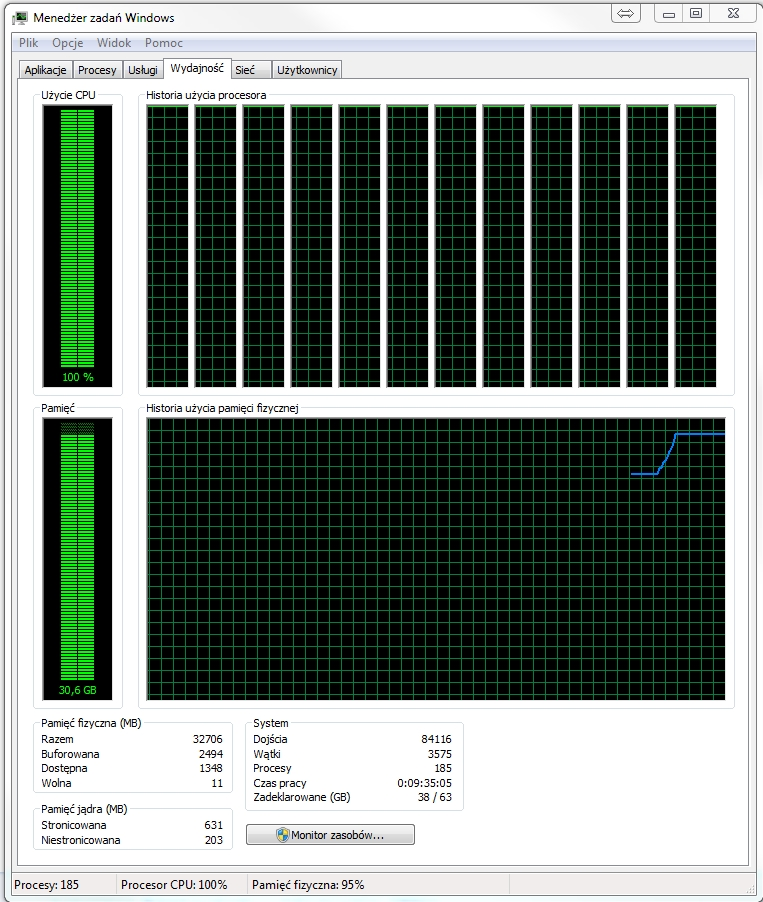
What to do then? Possible causes include too many polygons (e.g., highly detailed trees), too many 4K textures, or intensive use of displacement. You have two options: optimize the scene or increase the computer's RAM. It's definitely worth starting with optimization – it's a faster and cheaper solution.
You can find useful tips in the article “10 Tips on How to Speed Up 3ds Max”. Focus on using V-Ray Proxy and reducing texture resolutions where it doesn't affect the final visualization quality. However, sometimes even the best optimization isn't enough – in that case, consider purchasing additional RAM.
I hope these tips will help you avoid render freeze issues. And if they do occur – they'll help you resolve them quickly.
If you found this article helpful, share your opinion in the comments below.
Also check out our 3ds Max online courses – there you'll find practical knowledge and proven solutions.
Good luck with your work in 3ds Max!
Author

Read on our blog
-
![Profile Builder 4 or Magic Molding? Comparison of Ornamentation Plugins in SketchUp]()
Profile Builder 4 or Magic Molding? Comparison of Ornamentation Plugins in SketchUp
How does Profile Builder 4 differ from Magic Molding? Scope, pricing, profile libraries, and learning curve. Find out which plugin fits your projects. -
![The Best Free SketchUp Plugins for Interior Designers in 2026!]()
The Best Free SketchUp Plugins for Interior Designers in 2026!
Which SketchUp plugins are really worth having? Discover 7 free extensions for interior designers and find out which ones have just stopped being free! -
![English wainscoting in SketchUp - how to design wall panels step by step]()
English wainscoting in SketchUp - how to design wall panels step by step
How to design English wainscoting in SketchUp? Learn the rules for panel division, wainscot proportions, and speed up your work with the Magic Molding plugin. -
![Reversed Faces in SketchUp – why are blue faces showing and how to fix them?]()
Reversed Faces in SketchUp – why are blue faces showing and how to fix them?
Blue faces in SketchUp are flipped faces. Learn where they come from, how to quickly locate and fix them before they mess up your render or model export.




Want to learn 3ds Max? Check out our free online course!